


Two of these are on SAHI web and shown below on real SAHI web screens, in light and dark: the favourite drawing tools and the + on the price axis. The other two, Research notifications and Practice Mode, are on the SAHI app and are shown on SAHI's own phone screens.
Research notifications
1Where it is
WhereSAHI appHomeResearchBell icon
In the SAHI app, on Home, open the Research tab (beside F&O, Stocks, IPO and ETFs). The bell sits beside the Stocks and Options switch above the recommendations.
Turn on research alerts4 steps
- On Home, open the Research tab.
- Tap the bell beside the Stocks and Options switch.
- Switch on Notify me for new recommendations.
- Tick the segments (Stocks, Options) and durations (Intraday, Short Term, Long Term) you want, then tap Apply.
2What it is
A push notification on your phone each time Sahi Research publishes a new recommendation that matches your choices. You pick the segments and the durations, so an intraday options trader and a long-term stock investor each hear only about their own kind of idea.
Each recommendation in the Research tab shows the entry range, stop loss and take profit, the potential move, and the estimated margin, loss and profit.
- AResearch tab
On Home, beside F&O, Stocks, IPO and ETFs.
- BThe bell
Opens the alert settings. Crossed out means alerts are off.
- CNotify me
The master switch for research alerts.
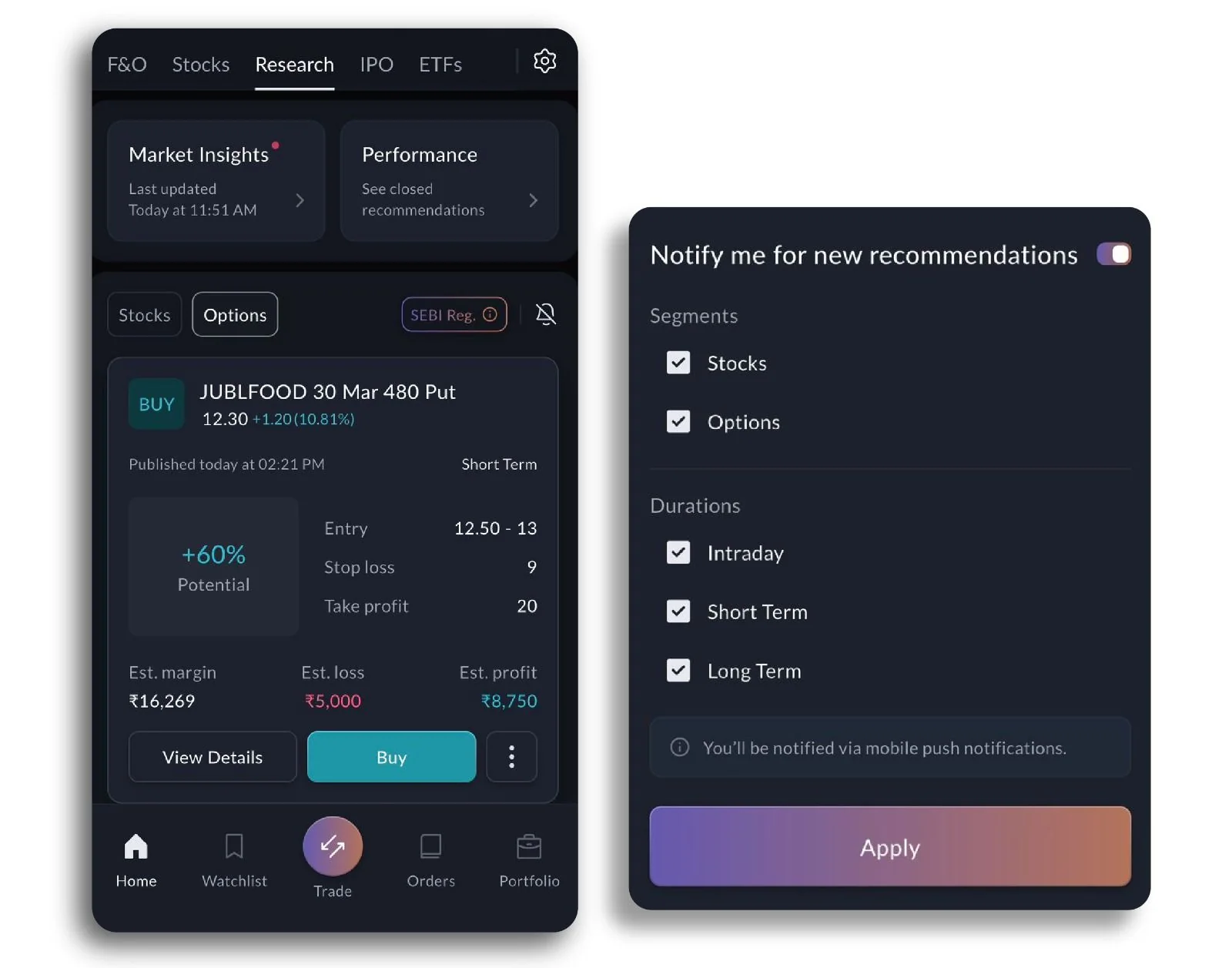
- DSegments
Stocks, Options, or both.
- EDurations
Intraday, Short Term and Long Term ideas, each on or off.
- FPush notifications
Alerts arrive as mobile push notifications.
3How it helps
- No more checking the tab. A new idea reaches you as it is published, not when you next open Research.
- Only the ideas you trade. Segments and durations filter the alerts, so a long-term investor is not pinged about intraday options.
- Time to act on the levels. Each idea comes with entry, stop loss and take profit; hearing about it early leaves room to use them.
- Research alerts are push notifications on the SAHI app; we found no Research section on SAHI web.
- Research ideas are not a promise of returns. Read the levels and the risk before acting on one.
Favourite drawing tools
1Where it is
WhereAny chartDrawings menu (pencil)Star a toolShow favourites
On SAHI web, press the pencil in the chart header to open the drawings menu. Every tool in the list has a star, and Show favourites at the top puts your starred tools on a small floating bar over the chart.
- ADrawings menu
The pencil in the chart header opens it.
- BShow favourites
Shows or hides the floating bar of starred tools.
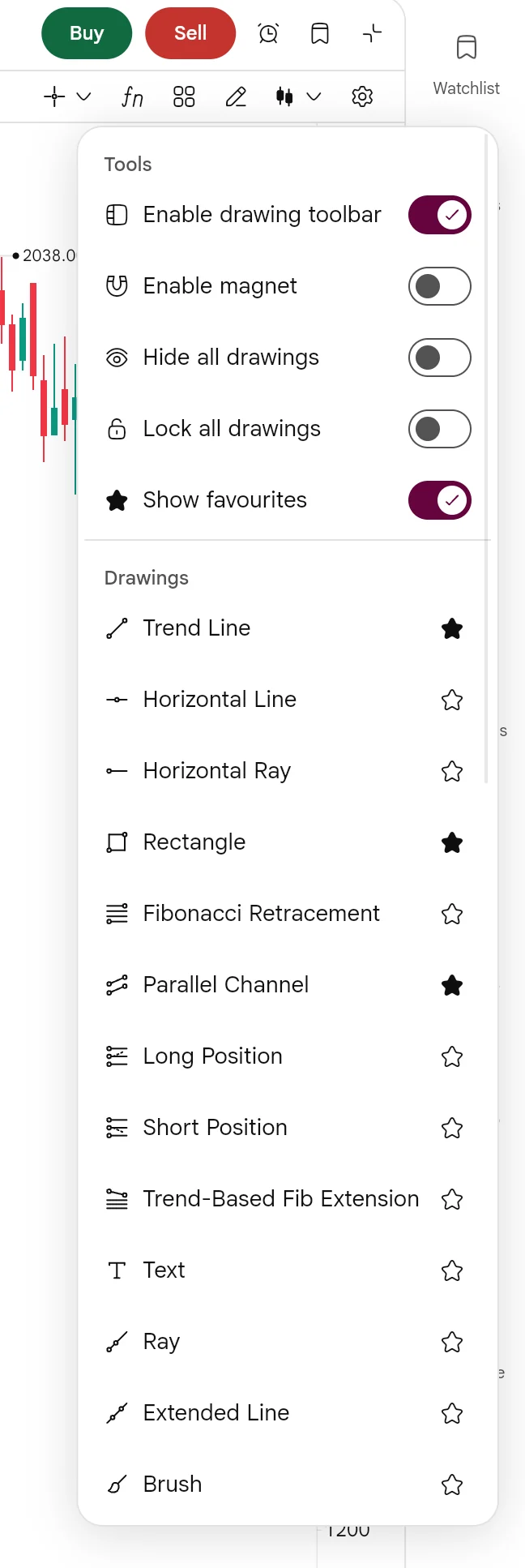
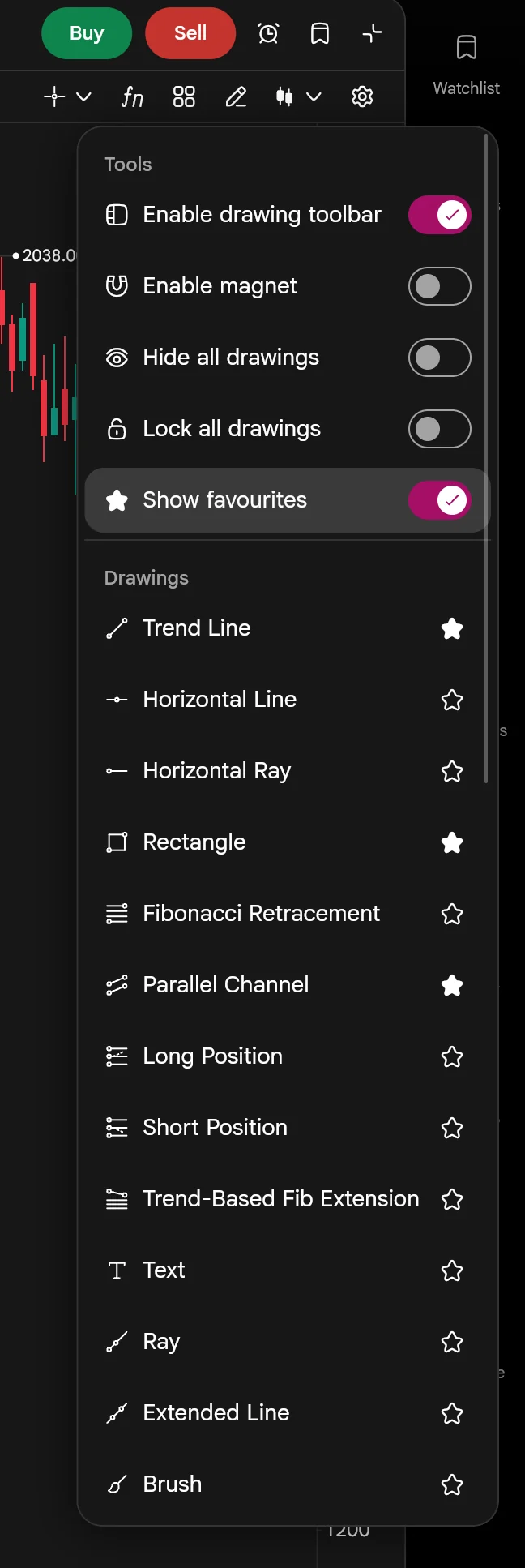
- CStarred tools
A filled star marks a favourite: here Trend Line, Rectangle and Parallel Channel.
- DStar any tool
Tap an empty star to add that tool to the bar; tap again to take it off.
Pin your tools4 steps
- Open a chart and press the pencil in the chart header.
- Tap the star beside each tool you use most.
- Switch on Show favourites. The floating bar appears on the chart.
- Drag the bar by its handle to anywhere it does not cover price.
2What it is
A small floating bar on the chart with only your starred drawing tools on it, in the order they sit in the list. One click on a tool starts drawing; there is no menu to open first.
The star button at the bottom of the left drawing toolbar shows whether favourites are on. The bar follows you across charts, including the option chart on the Scalper screen.
- ADrag handle
Move the bar anywhere on the chart.
- BYour favourites
Trend Line, Rectangle, Parallel Channel and Path, one click each.
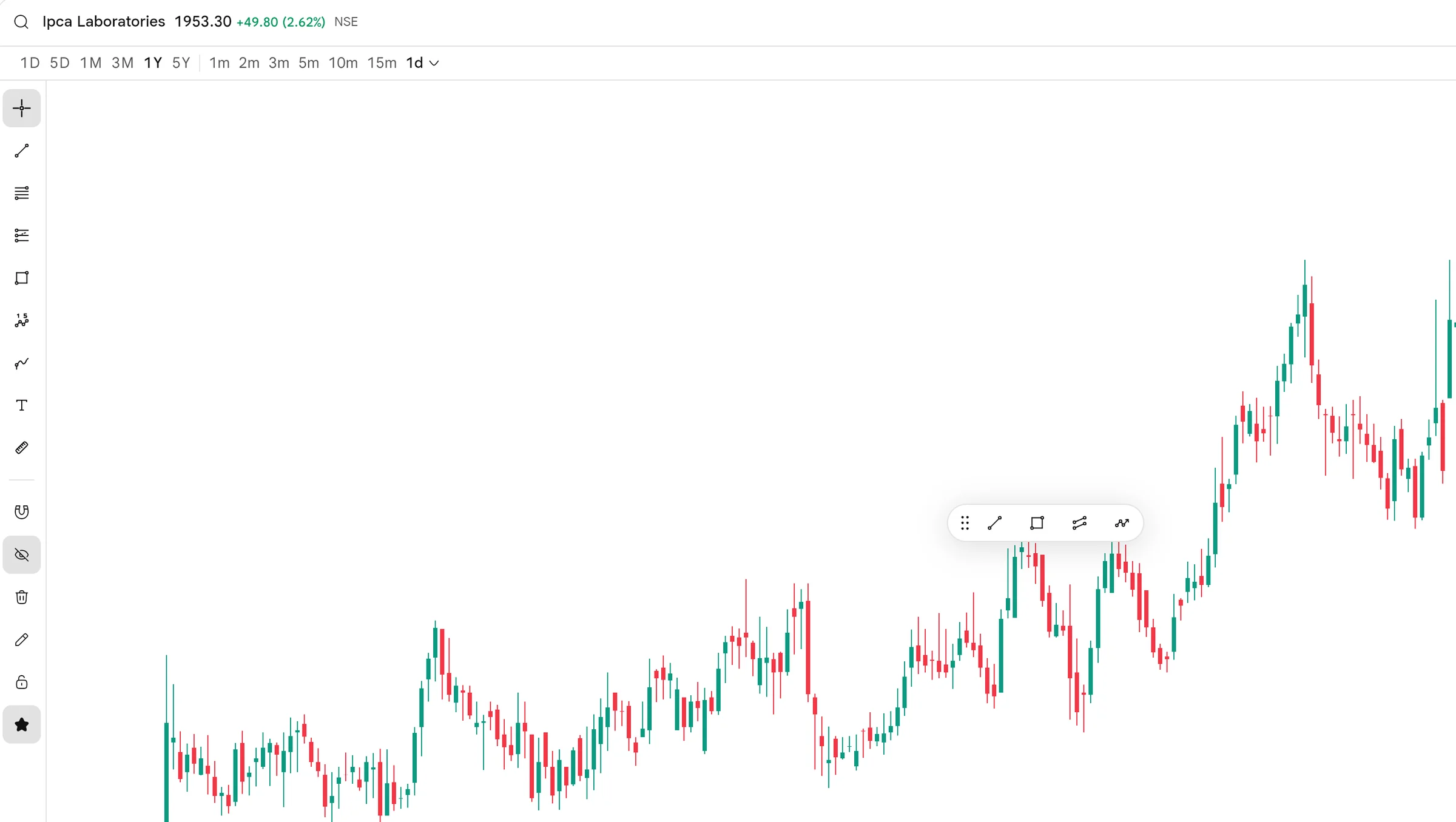
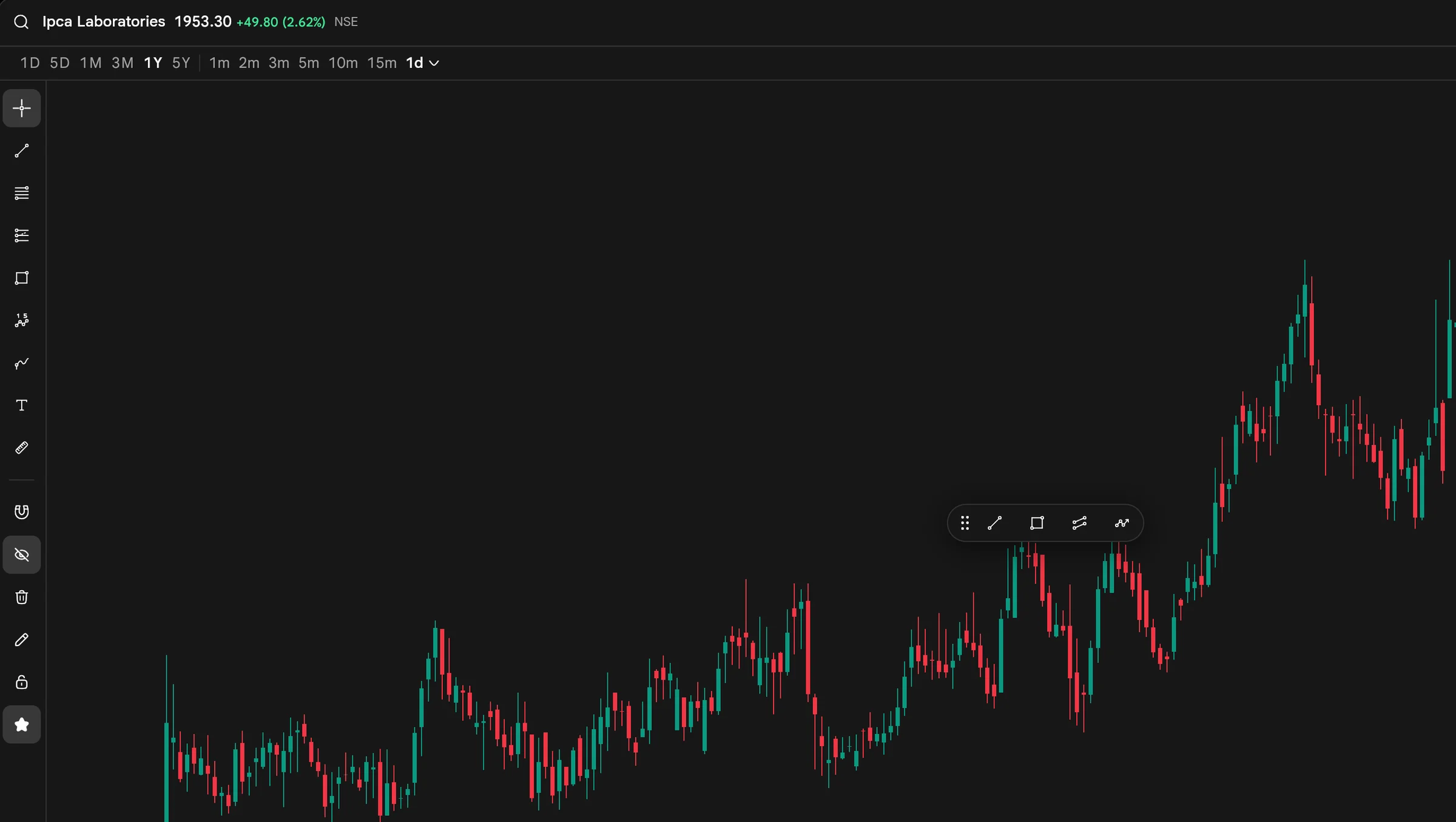
- CFavourites star
Lit while the floating bar is shown.
3How it helps
- One click instead of three. The tools you use every day are on the chart, not two menus away.
- A cleaner left toolbar habit. Keep the full toolbar for rare tools and the bar for the ones you repeat: support lines, ranges, channels.
- Your setup on every chart. The same favourites appear on each chart you open, including the scalper's option chart.
Star the tools you use for one routine, for example Trend Line, Rectangle and Horizontal Line for marking levels before the open, and switch Show favourites off when you want a clean chart.
- SAHI's release says favourites are on the app too; the screens here are SAHI web.
Practice Mode: more candle sizes and time ranges
1Where it is
WhereSAHI appPractice ModeRange
In the SAHI app's Practice Mode, the scalper layout with Buy at Mkt and Sell at Mkt at the foot and an Exit button at the top. Tap Range on the chart toolbar to pick the candle size.
2What it is
Practice Mode replays the market so you can place trades without real money: the P&L, Positions and Orders at the top belong to the practice session, and Exit takes you back.
This release adds candle sizes and time ranges. Seconds: 5s, 15s, 30s. Minutes: 1m, 2m, 3m, 5m, 10m, 15m, 30m. Hours below those. At the top sit a calendar and a 1x speed button for the replay.
- AExit
Leaves Practice Mode and returns to the live market.
- DSecond candles
5s, 15s and 30s: new in this release.
- EMinute candles
1m to 30m, with hours below.
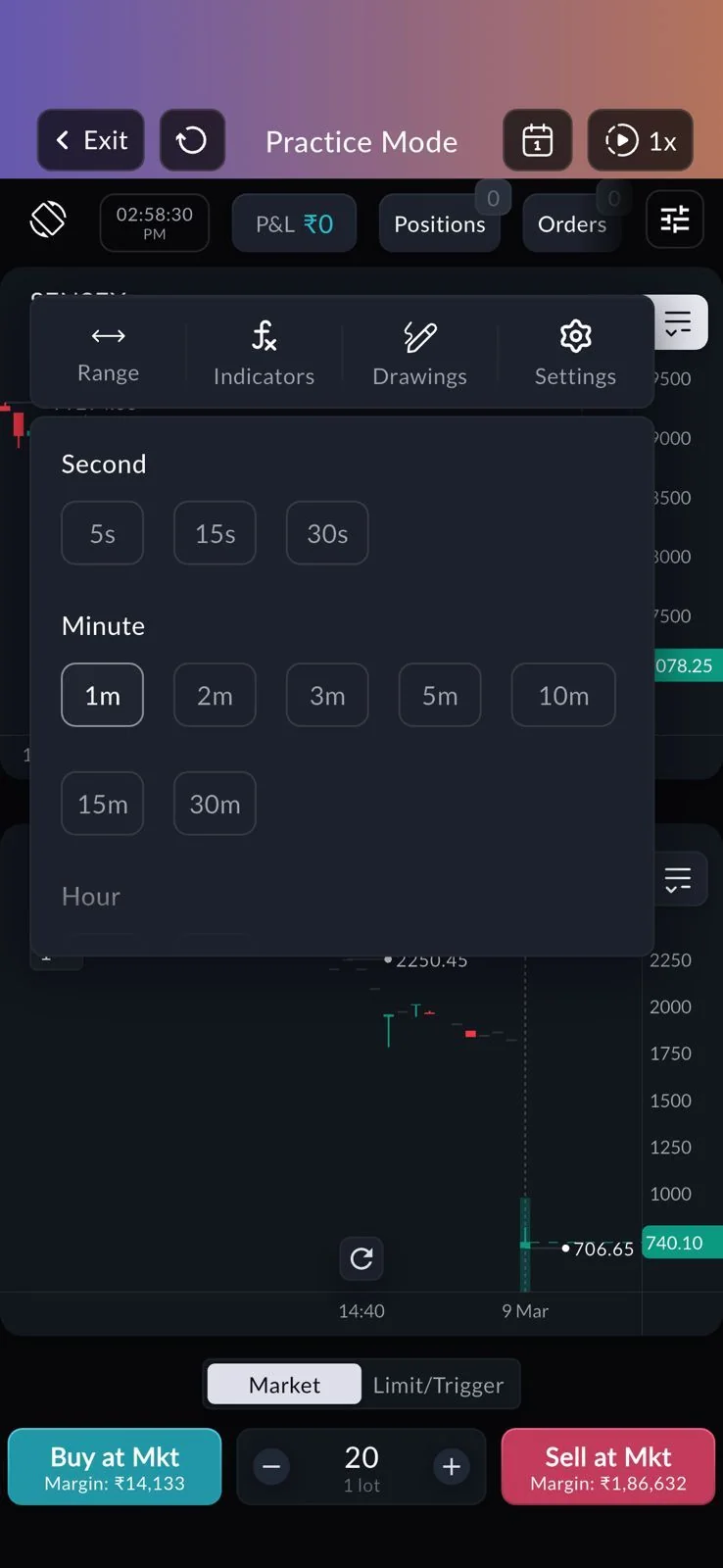
- BCalendar and speed
The calendar and the 1x speed button control the replay.
- CPractice P&L
P&L, Positions and Orders for this session only. No real money.
- FBuy and Sell at market
Practice orders, with the margin a real order would need.
3How it helps
- Practise the timeframe you actually trade. A 15-second scalp and a 30-minute swing need different habits; now both can be rehearsed.
- See how a setup behaves on more timeframes. Replay the same day on 5s and on 5m candles and compare.
- Mistakes that cost nothing. Orders, P&L and margin behave like the real thing, with no money at stake.
- Practice results do not include the slippage and queue position of a live order.
- The screen here is SAHI's own; Practice Mode is on the SAHI app.
Buy or Sell from the price axis
1Where it is
WhereAny chartPrice axis+ at the crosshair
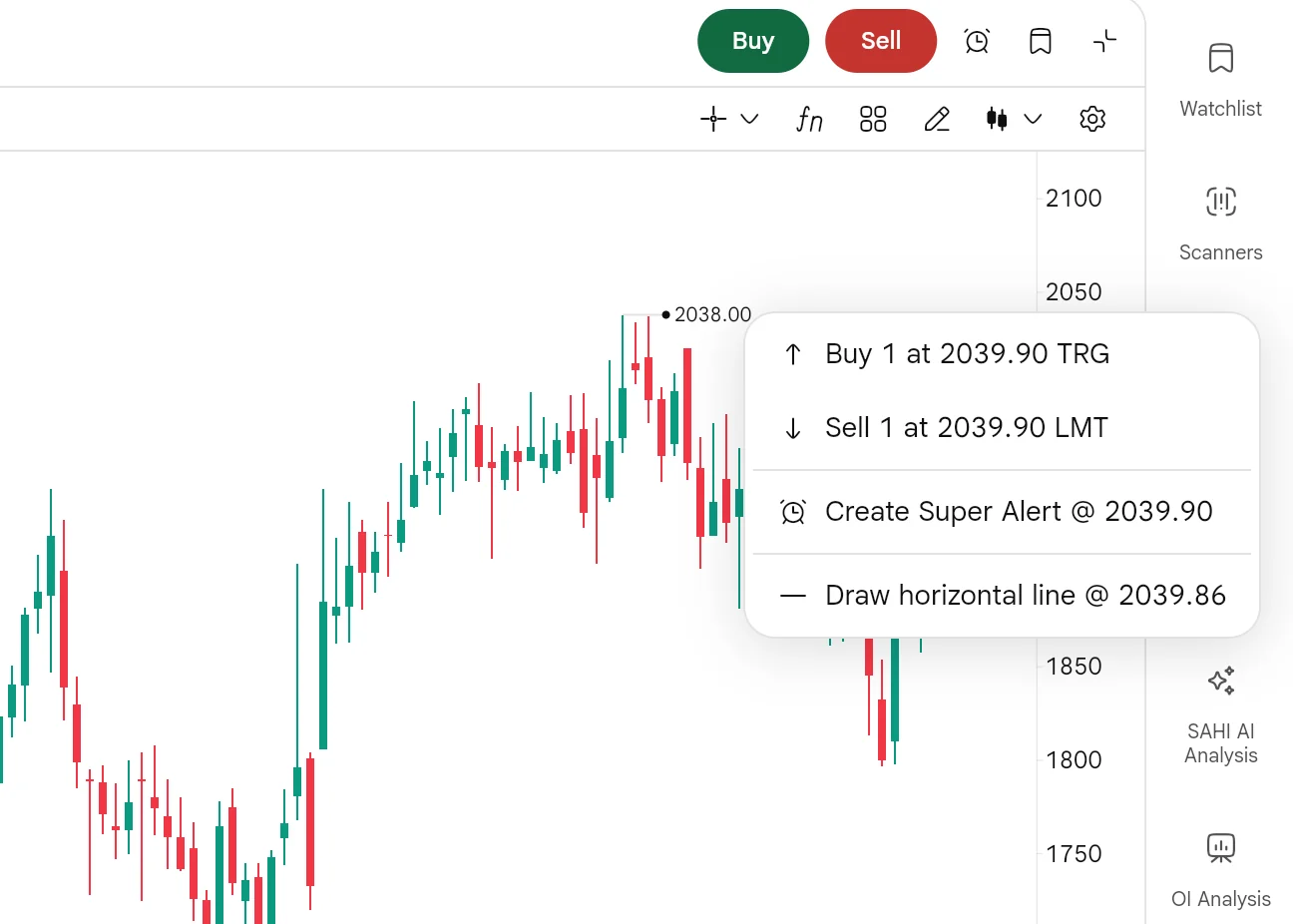
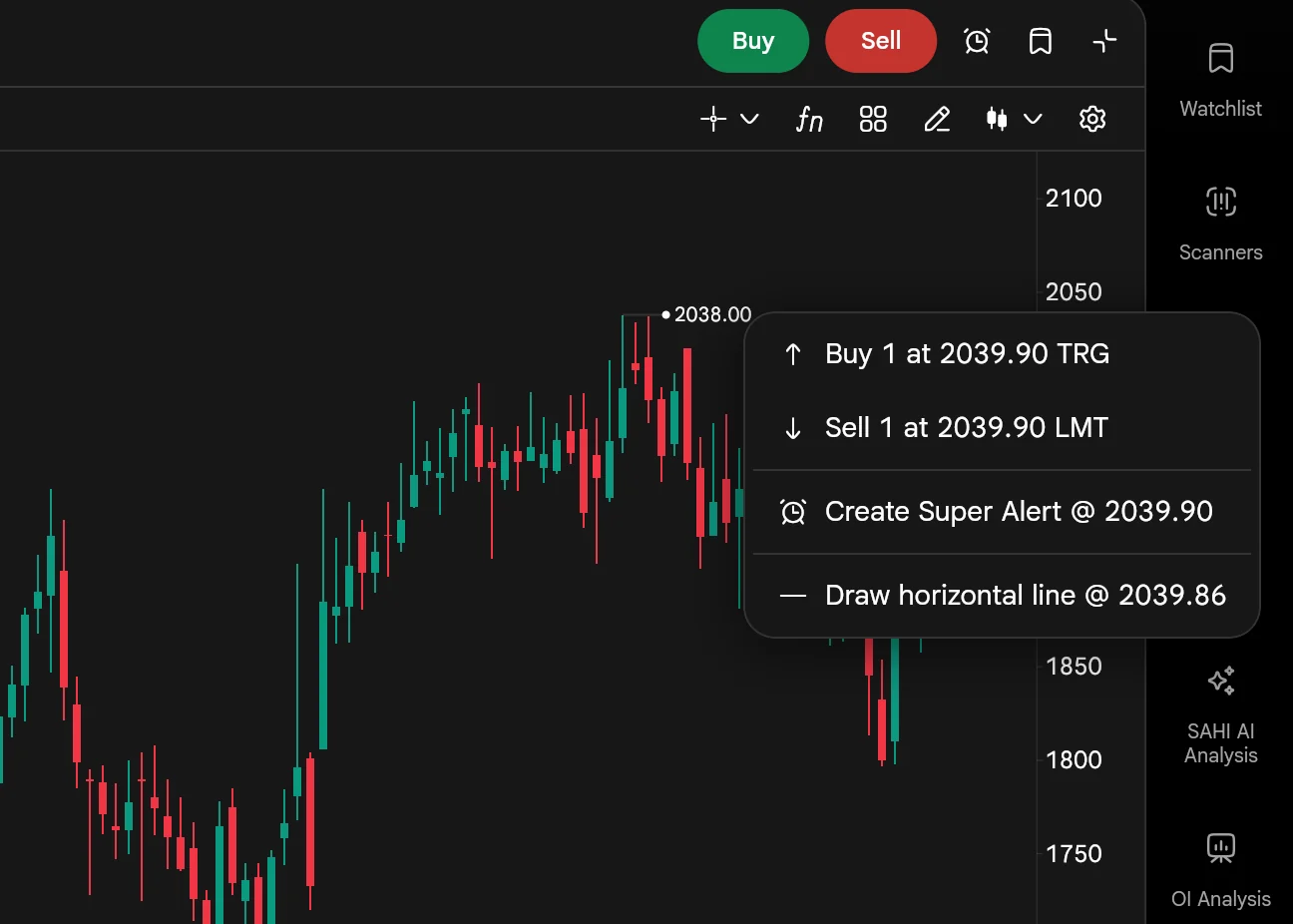
On SAHI web, move the mouse over the chart. A + appears on the price axis at the crosshair's price; click it for the menu.
- AThe + button
Rides the crosshair up and down the price axis.
- CCrosshair line
Line it up with a level you have marked, a high or a drawn line.
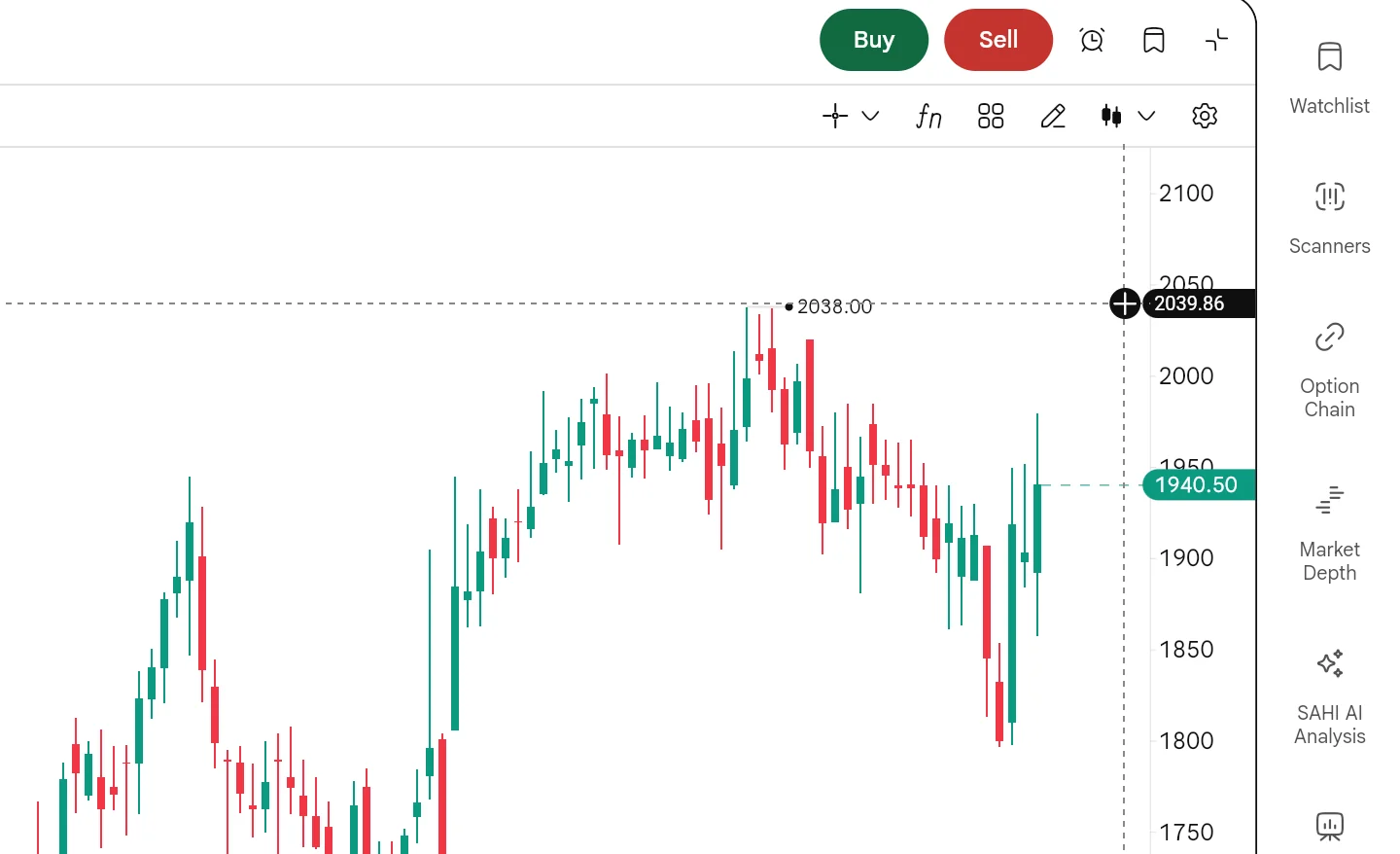
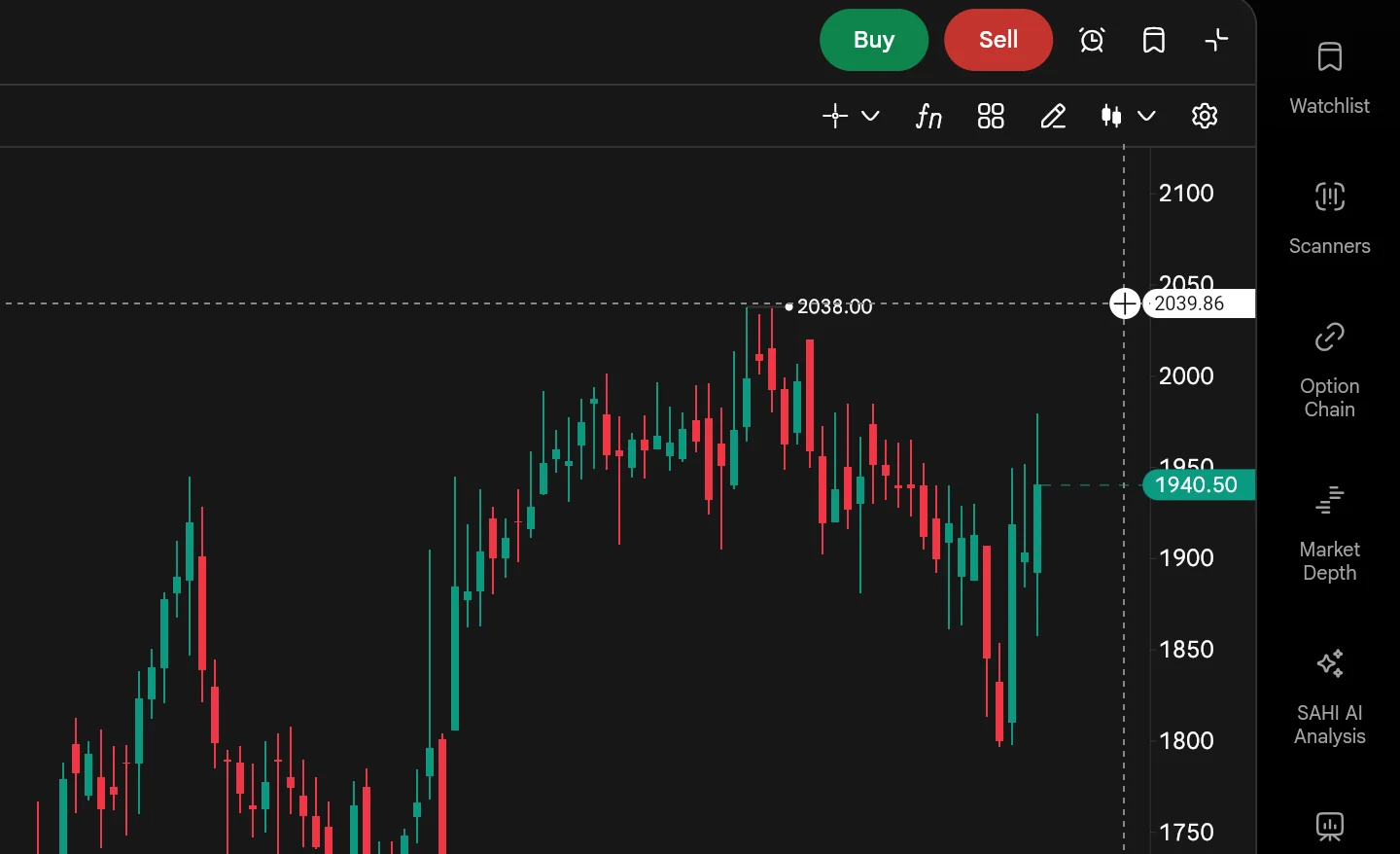
- BThe crosshair price
2039.86: the level the menu will use.
- DLast price
1,940.50. Whether the level is above or below this decides the order type.
Start an order from a level3 steps
- Move the crosshair to the price you want.
- Click the + on the price axis.
- Pick Buy or Sell to start an order at that price, or create a Super Alert, or draw a horizontal line there.
2What it is
A four-line menu at the price you clicked: Buy, Sell, Create Super Alert and Draw horizontal line. The order price is rounded to a valid price step (2039.90 here), while the line keeps the exact level (2039.86).
SAHI picks the order type from where the level is. Above the last price, Buy is a trigger order (TRG, it fills only once price rises to the level) and Sell is a limit (LMT). Below the last price it flips: Buy is a limit and Sell is a trigger.
- ABuy 1 at 2039.90 TRG
Above the last price, a buy waits as a trigger: it goes in only if price climbs to 2039.90.
- BSell 1 at 2039.90 LMT
A sell above the market is a plain limit order at that price.
- CCreate Super Alert
An alert at the same price, without an order.
- DDraw horizontal line
Marks the exact level, 2039.86, on the chart.
3How it helps
- From level to order in two clicks. No typing a price into the order window: the level you point at is the price.
- The right order type, picked for you. A breakout buy above the market becomes a trigger; a dip buy below it becomes a limit.
- Alert or line from the same place. Not ready to trade? Set a Super Alert or mark the level instead.
Ipca's last price is 1,940.50 and its high is 2,038.00. Clicking the + just above the high offers Buy 1 at 2039.90 TRG, an order that waits for a breakout above the high, and Sell 1 at 2039.90 LMT. Clicking at 1,893.80, below the last price, offers Buy 1 at 1893.80 LMT and Sell 1 at 1893.80 TRG instead.
Check the quantity in the menu before you pick Buy or Sell: it starts at one share for stocks and one lot for F&O. With 1-Tap on, SAHI can send orders without showing the order window, so keep 1-Tap off if you want to review each one.
- The screens here are SAHI web; SAHI's release says the + is on the app too.
Questions
Where do research alerts arrive?
As push notifications on the SAHI app, for the segments and durations you pick behind the bell in the Research tab.
How do I add a tool to the floating bar?
Open the drawings menu with the pencil in the chart header and tap the star beside the tool. Switch on Show favourites to show the bar.
Why is my Buy from the price axis a TRG order?
The level is above the last price. A buy there only makes sense once price rises to it, so SAHI makes it a trigger order. Below the last price, the same buy is a limit order.
Does Practice Mode use real money?
No. Its P&L, positions and orders belong to the practice session only.
Try the price-axis + on your next levelOpen a chart on web.sahi.com, move the crosshair to a level you watch, and click the + on the price axis.
Open web.sahi.com