


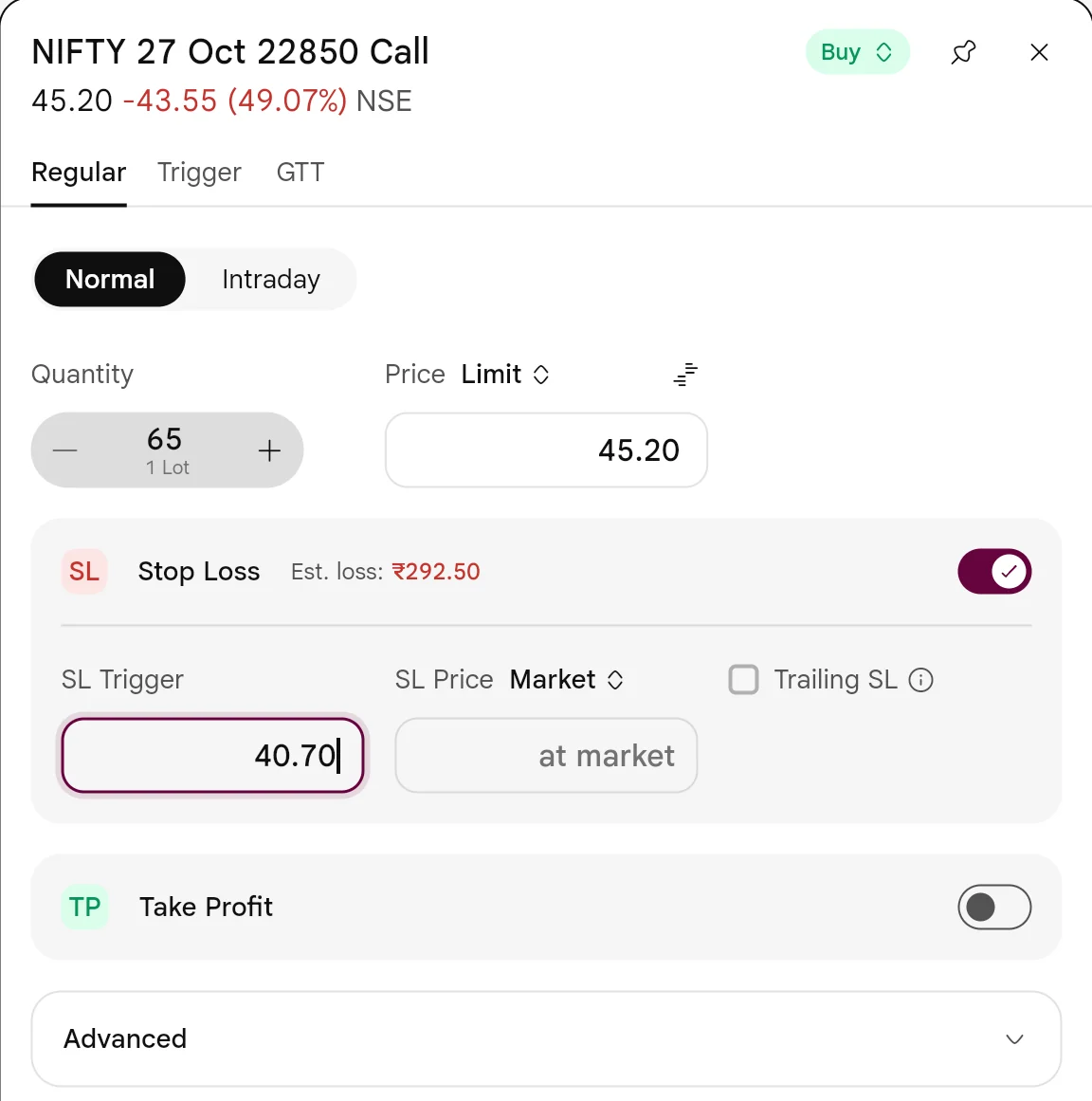
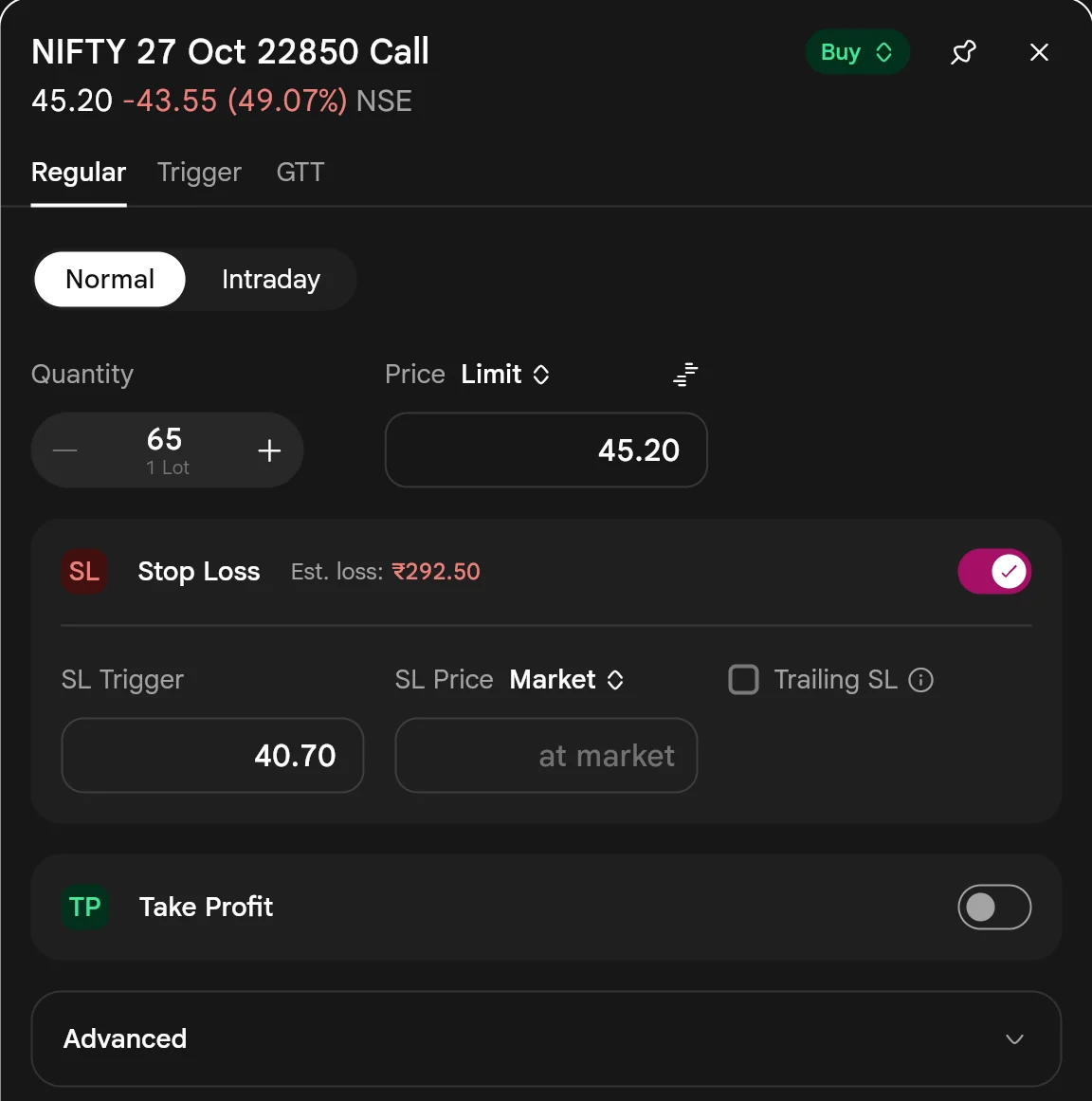
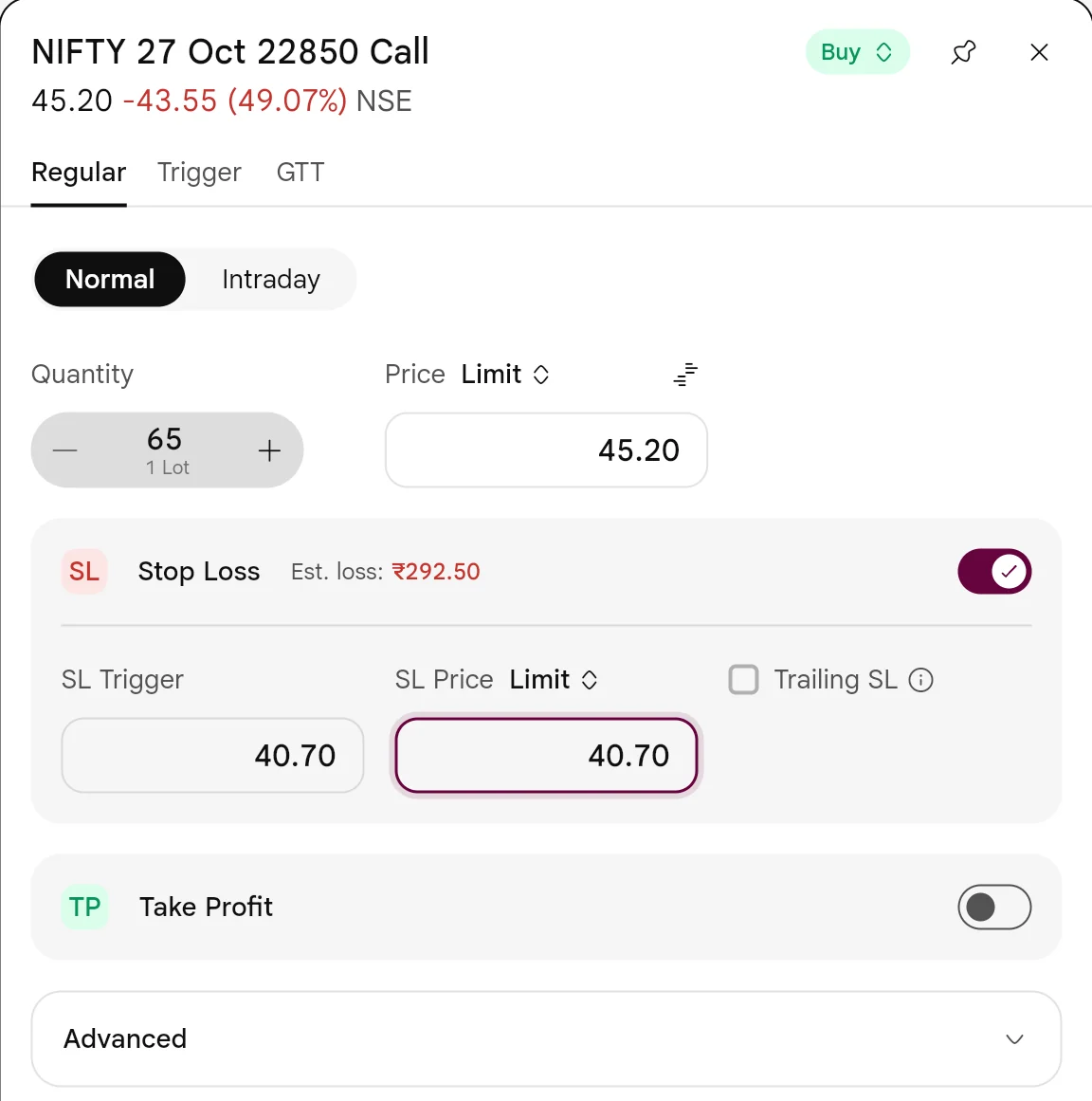
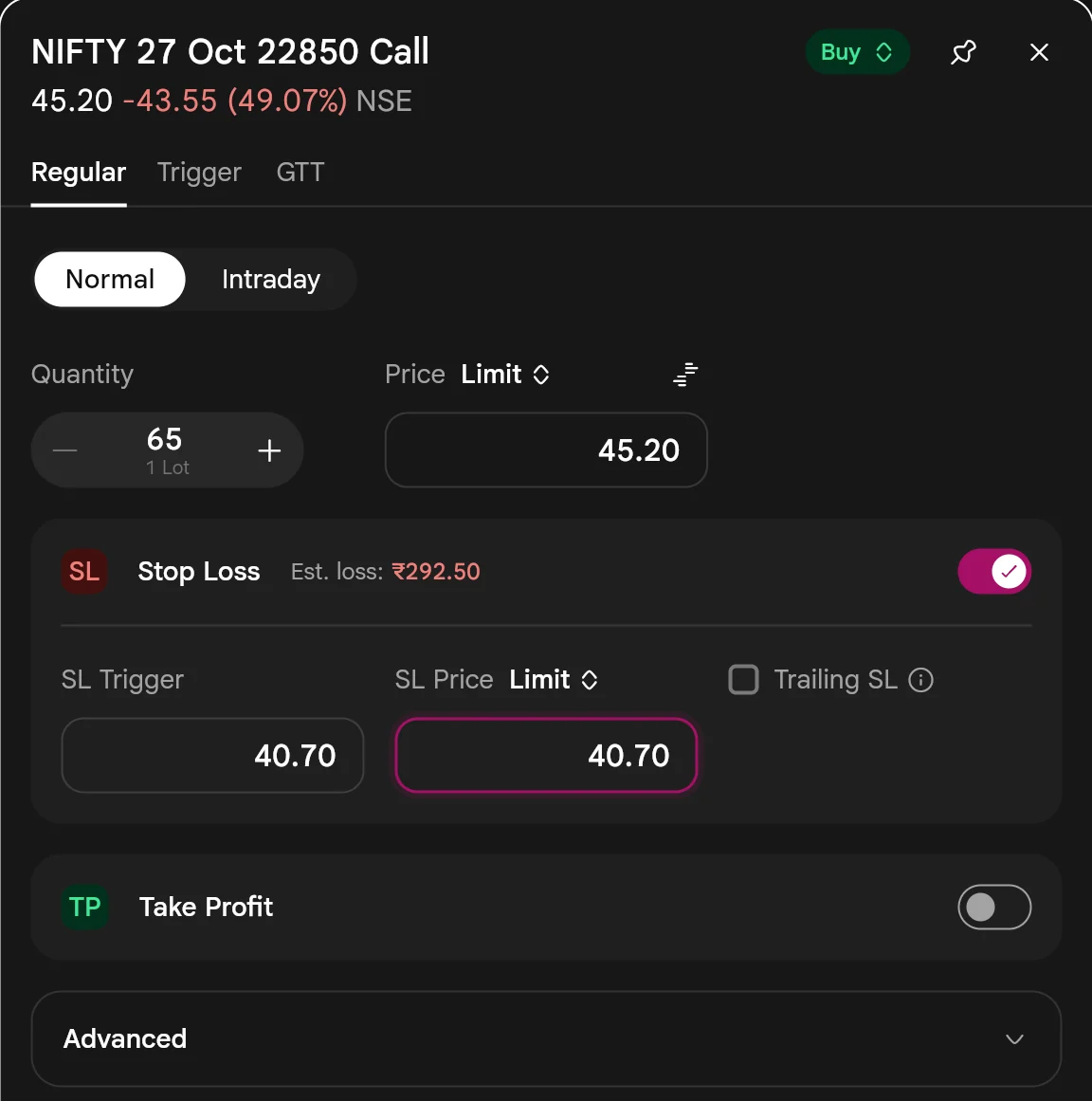
SAHI's release showed these on the app. The order window and the colour palette are below on SAHI web, light and dark, on a NIFTY 27 Oct 22850 call at 45.20, with one lot of 65. Add Money is on SAHI's own phone screen. No order was placed for these pictures.
Stop loss and take profit: Market or Limit
1Where it is
WhereSAHI webBuy or SellOrder windowStop Loss / Take Profit
Press Buy or Sell on any chart, chain or watchlist row. In the order window's Regular tab, turn on Stop Loss or Take Profit. Each one opens a Trigger box and a Price setting beside it, which reads Market or Limit.
- AStop Loss switch
Turns on a stop loss for this order. Est. loss shows what you lose if it fills at the trigger: ₹292.50 here.
- BSL Trigger
The price that sets the exit off: 40.70, 4.50 below the 45.20 entry.
- CSL Price: Market
Once triggered, the exit goes at market, so the box reads "at market".
- DTrailing SL
Moves the stop up as the price moves in your favour.
- ETake Profit
The same switch for a target, with its own Trigger and Price.
Set the exit type4 steps
- Press Buy or Sell and set the quantity and entry price.
- Turn on Stop Loss and type the SL Trigger.
- Press SL Price to switch between Market and Limit. For Limit, type the worst price you will accept.
- Do the same for Take Profit if you want a target, then place the order.
2What it is
The stop loss and the take profit that ride with an order each have two prices. The trigger is the price that sets the exit off. The price is how the exit order goes in once triggered: at Market, to fill at whatever is available, or at Limit, to fill only at your price or better.
SAHI's release says this works in every segment, for stocks, futures and options, and when you edit the stop loss or target of an open position as well as on a new order.
- CSL Trigger
Still 40.70: the price that sends the limit order in.
- DEst. loss
₹292.50: 4.50 a unit on 65 units, if the exit fills at 40.70.
- ASL Price: Limit
Press Market to switch it to Limit. A price box opens below.
- BLimit price
The exit fills at this price or better, never worse. It starts at the trigger, 40.70.
3How it helps
- Market when getting out matters most. In a fast fall, a market stop fills even if the price gaps past your trigger.
- Limit when the price matters most. A limit target never sells below your number, so a spike that reverses cannot fill you at a worse price.
- Known risk before you buy. Est. loss and Est. profit update as you type, in rupees for your quantity.
- ATake Profit
Switched on. Est. profit ₹292.50 if it fills at the trigger.
- BTP Trigger
49.70, 4.50 above the entry: the same distance as the stop, so risk and reward are equal.
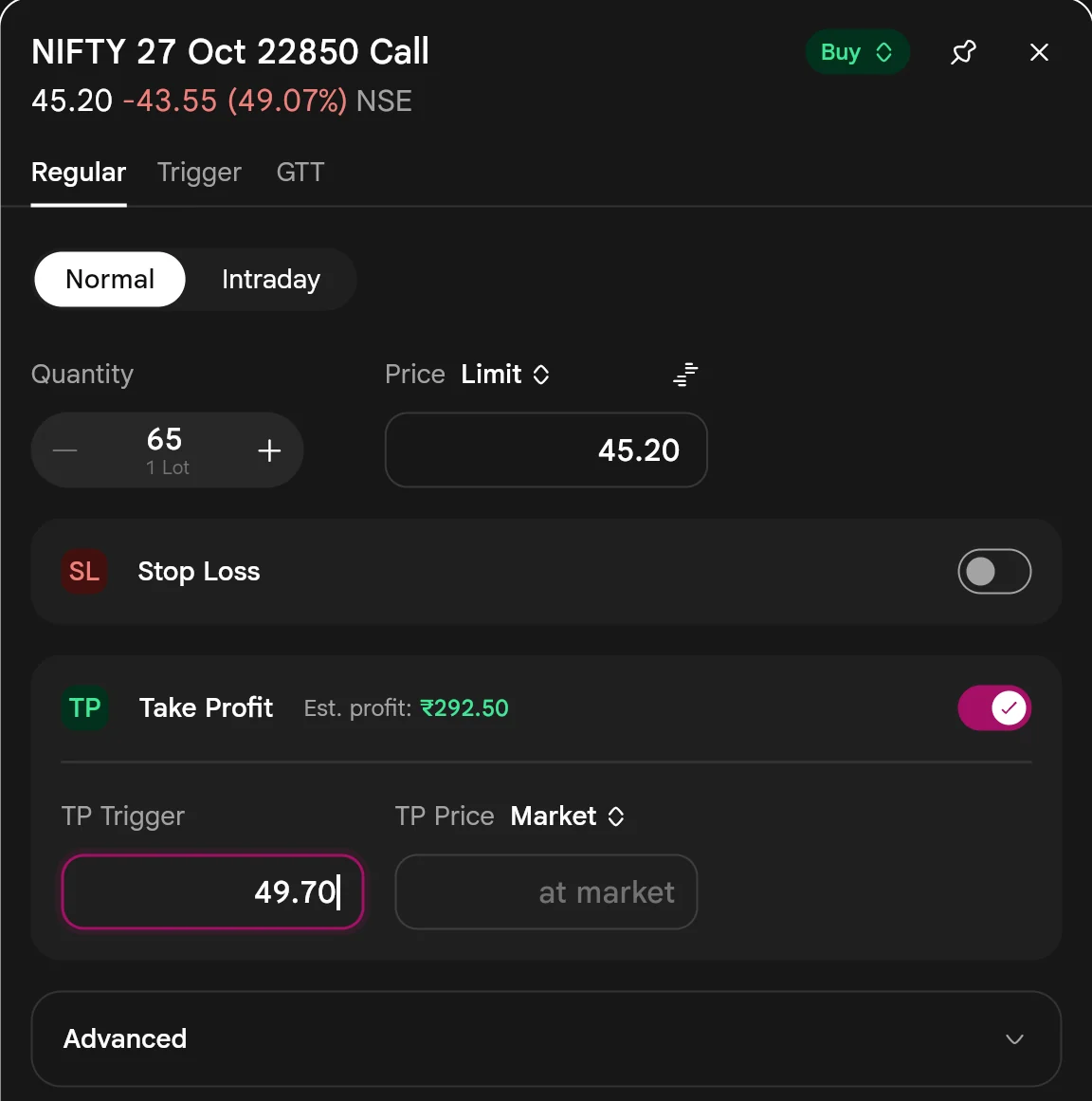
- CTP Price
Market here. Switch it to Limit to take profit only at your price.
Buying one lot of the 22850 call at 45.20 with a stop at 40.70 risks ₹292.50, and a target at 49.70 aims for the same ₹292.50. If the option drops from 41 to 39 in one tick, a Market stop exits near 39; a Limit stop at 40.70 does not fill until the price comes back to 40.70.
A Limit stop loss can be skipped in a gap, which leaves you in the trade. For a stop you must be able to rely on, use Market, or set the limit a little below the trigger.
- We did not open a position, so editing the stop loss of an open trade is not shown; SAHI's release says the same Market or Limit choice is there.
- Prices are from the session of 23 Oct 2026, shown on 25 Oct with the market closed.
A chart colour palette you can preview
1Where it is
WhereSAHI webChartSettings (gear)Customize
On any chart, press the gear at the right end of the chart toolbar and open the Customize tab. Press a colour box to open the palette.
- ACustomize tab
Beside Chart type and View on chart.
- DReset to default
Puts every colour back to SAHI's own.
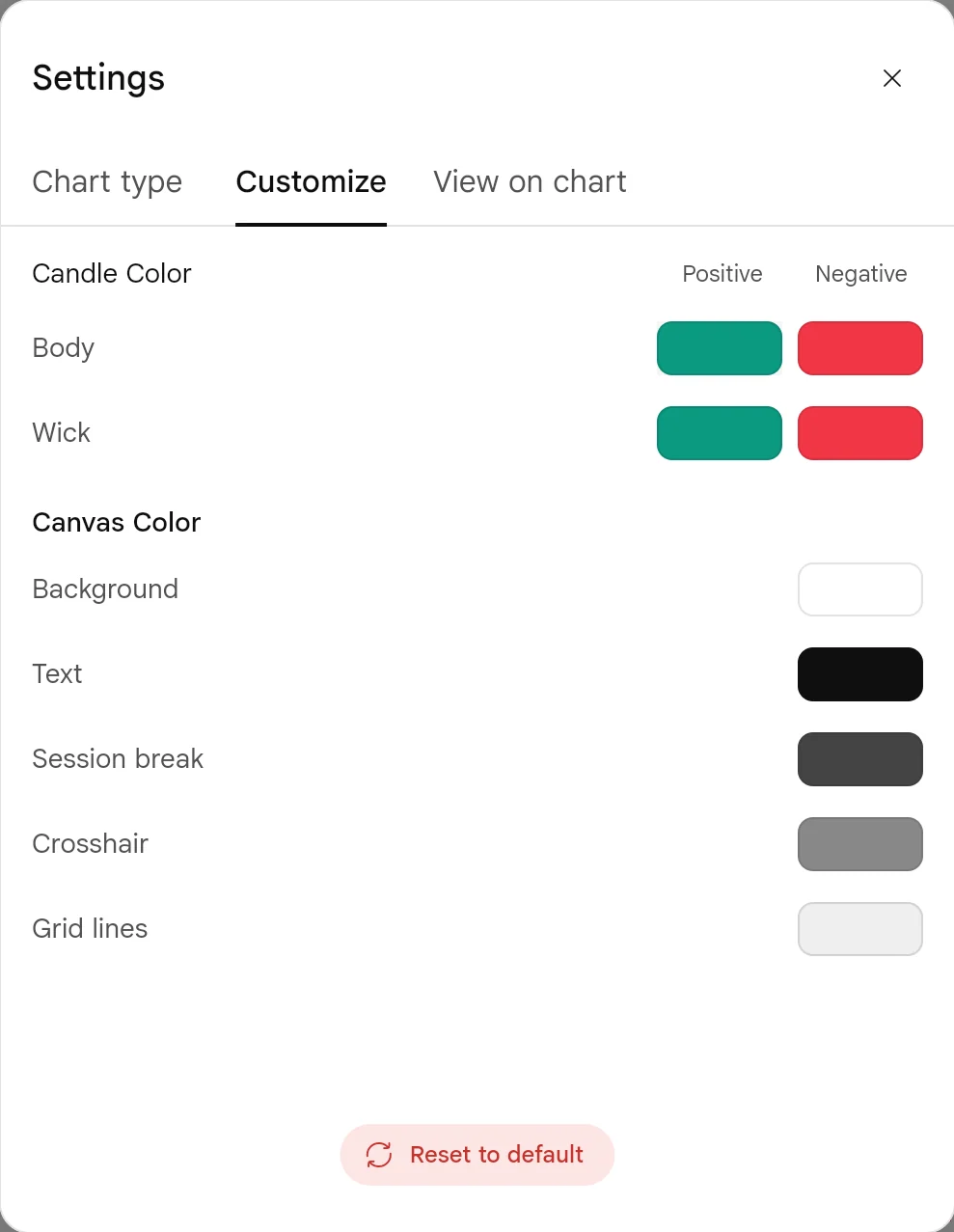
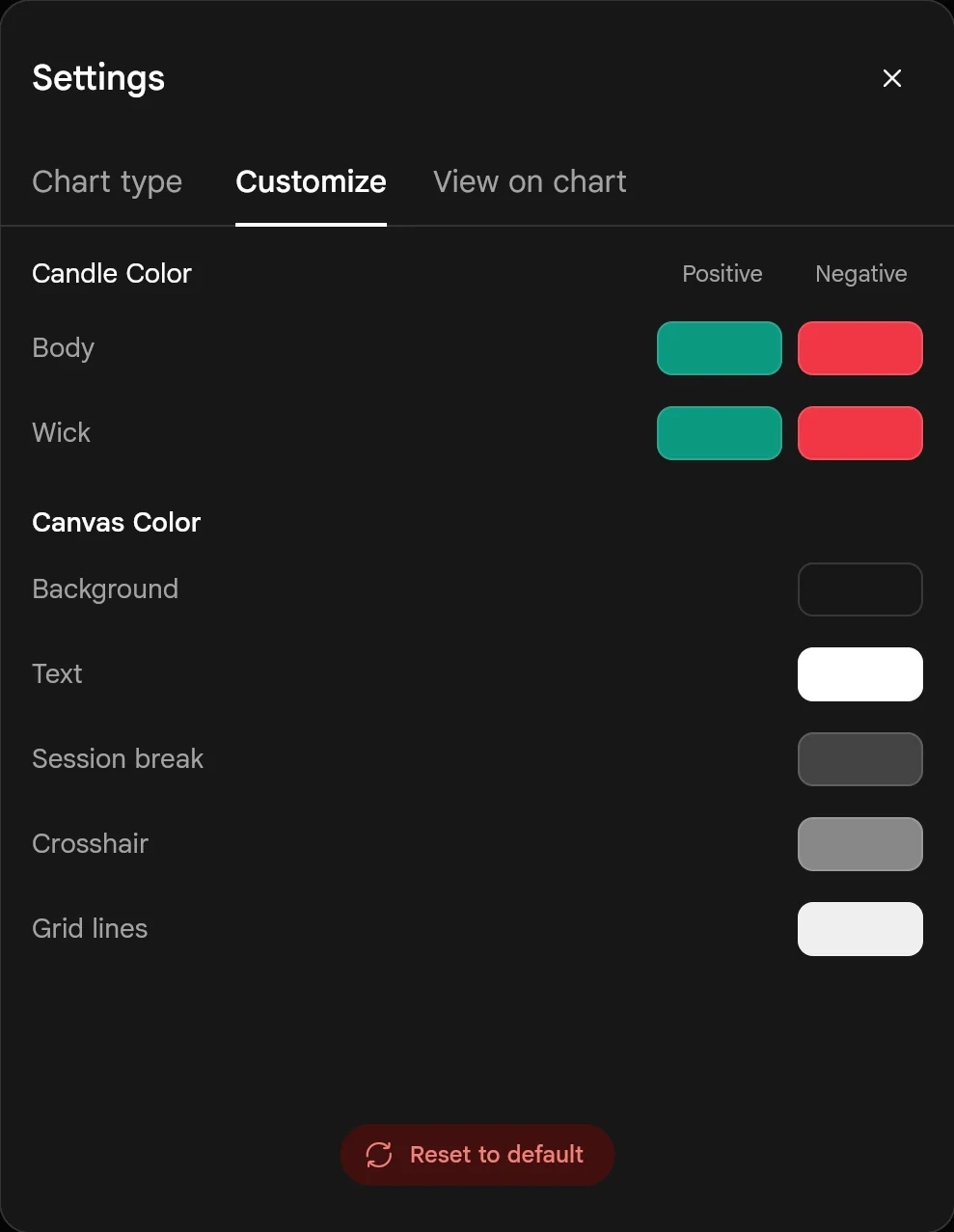
- BCandle Color
Body and wick, separately for rising (Positive) and falling (Negative) candles.
- CCanvas Color
Background, text, session break lines, crosshair and grid lines.
2What it is
Pressing any colour box opens Select Color: 25 colours in a grid, the current one ticked, an Opacity slider and Save. SAHI's release says the point is to see a colour in the panel before you apply it.
Candles take two colours each for body and wick; the canvas has five parts of its own.
- AThe box you pressed
Positive candle body, teal by default.
- B25 colours
Reds to greens to blues, then browns and greys; the current one is ticked.
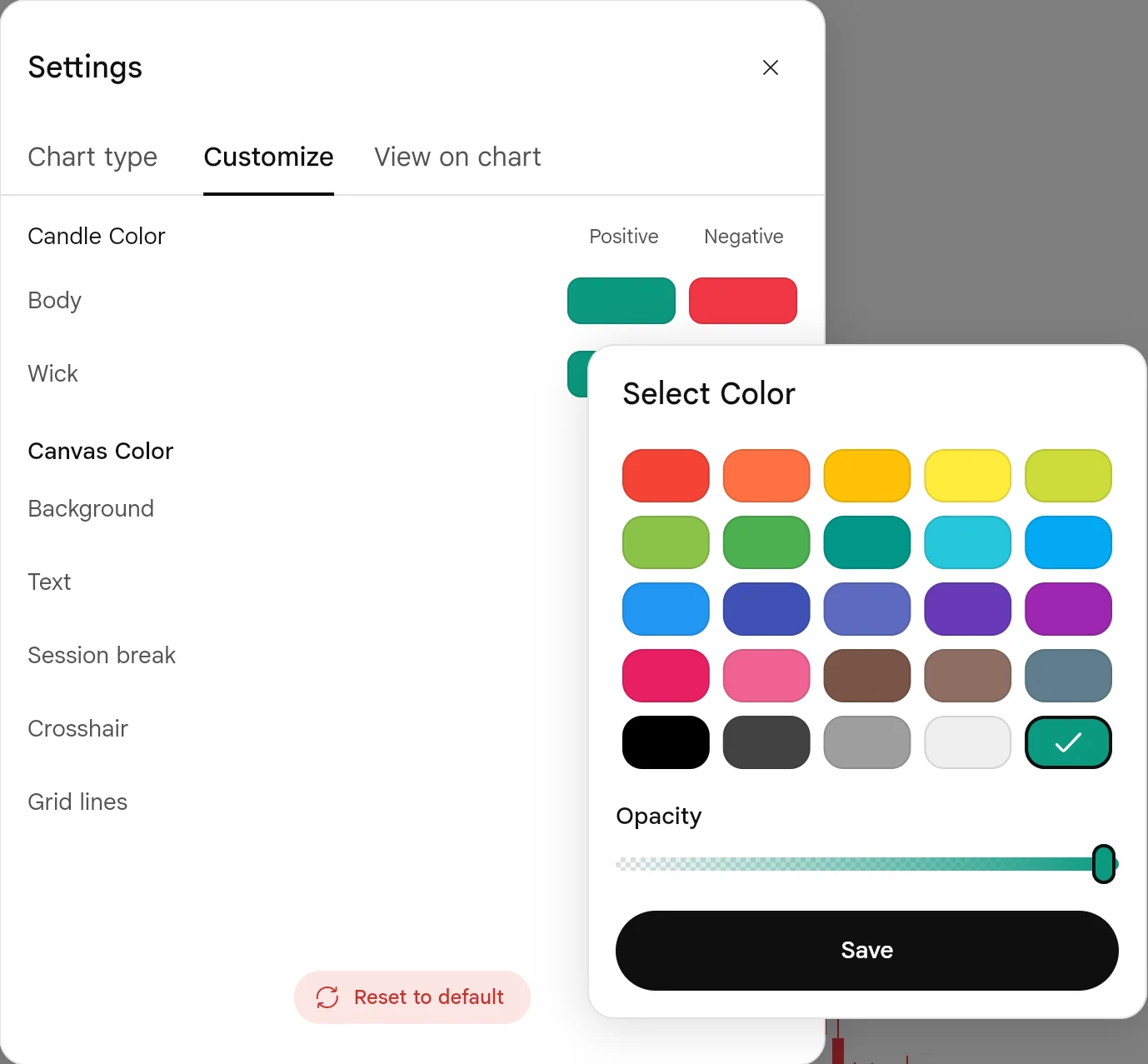
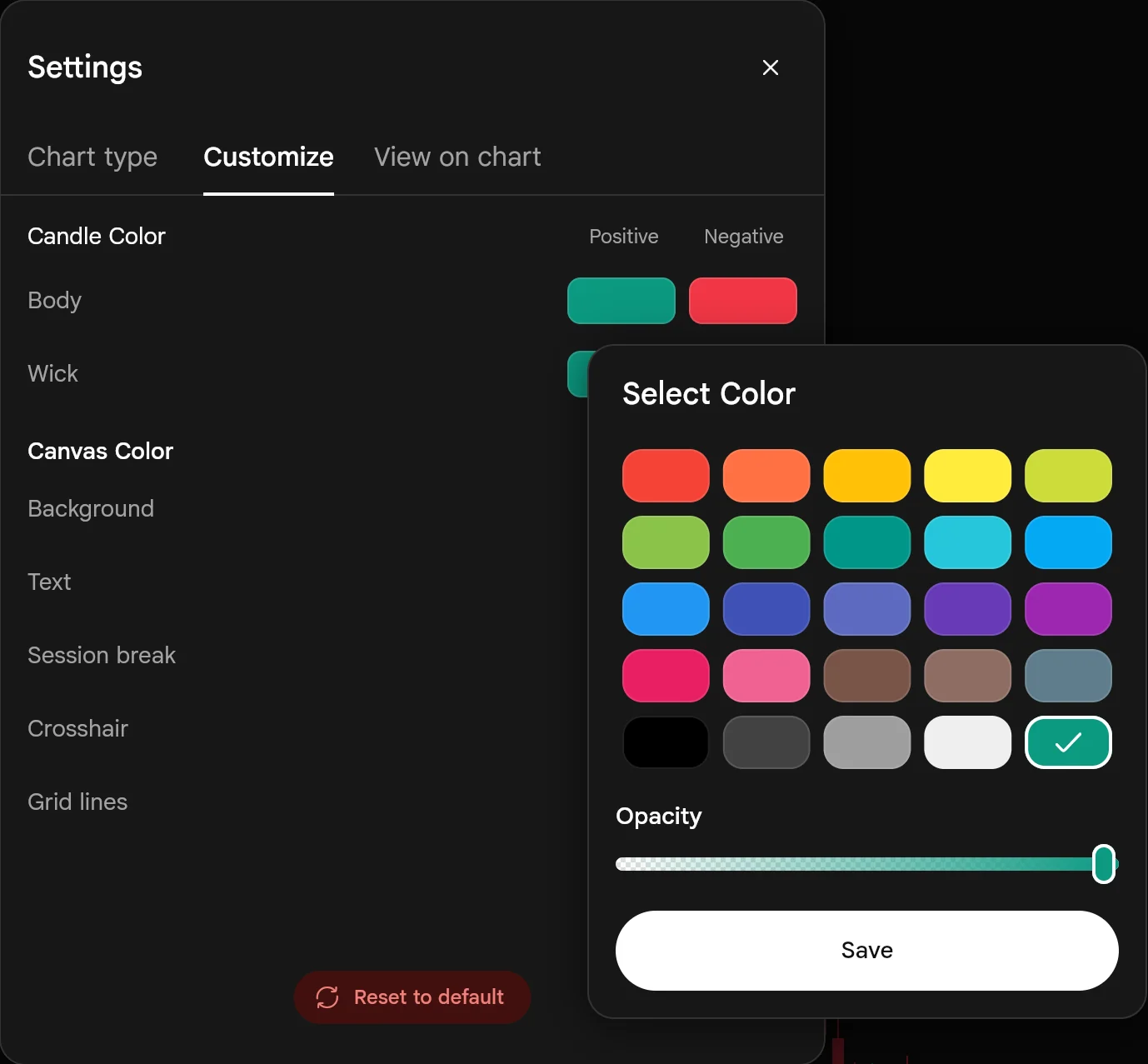
- COpacity
From see-through to solid, for softer candles or grid lines.
- DSave
Applies the colour to the chart.
3How it helps
- See before you commit. Every colour sits beside the others in the grid, so you choose by eye, not by name.
- Charts you can read in any light. Softer grid lines and a darker background for late evenings, stronger candles in daylight.
- A way back. Reset to default undoes every change in one press.
Keep rising and falling candles in colours you can tell apart at a glance. If you change one, check the pair together.
- SAHI's release shows the palette on the app; the pictures here are SAHI web, where we changed nothing and closed the palette without saving.
Add Money remembers how you paid last time
1Where it is
WhereSAHI appFundsAdd Money
On the SAHI app, open Funds, press Add Money and enter the amount. The Select Payment Method screen opens with your last choice already selected.
2What it is
SAHI remembers whether you last paid by UPI or net banking, and which UPI app or bank you used. The next time you add money, that option is selected for you, so you can press Proceed straight away. Pick another app or bank with one tap if you want.
- ALast used, selected
Google Pay, paying from the same HDFC Bank account as last time.
- BOther UPI apps
Paytm, Navi, or any UPI ID; one tap to switch.
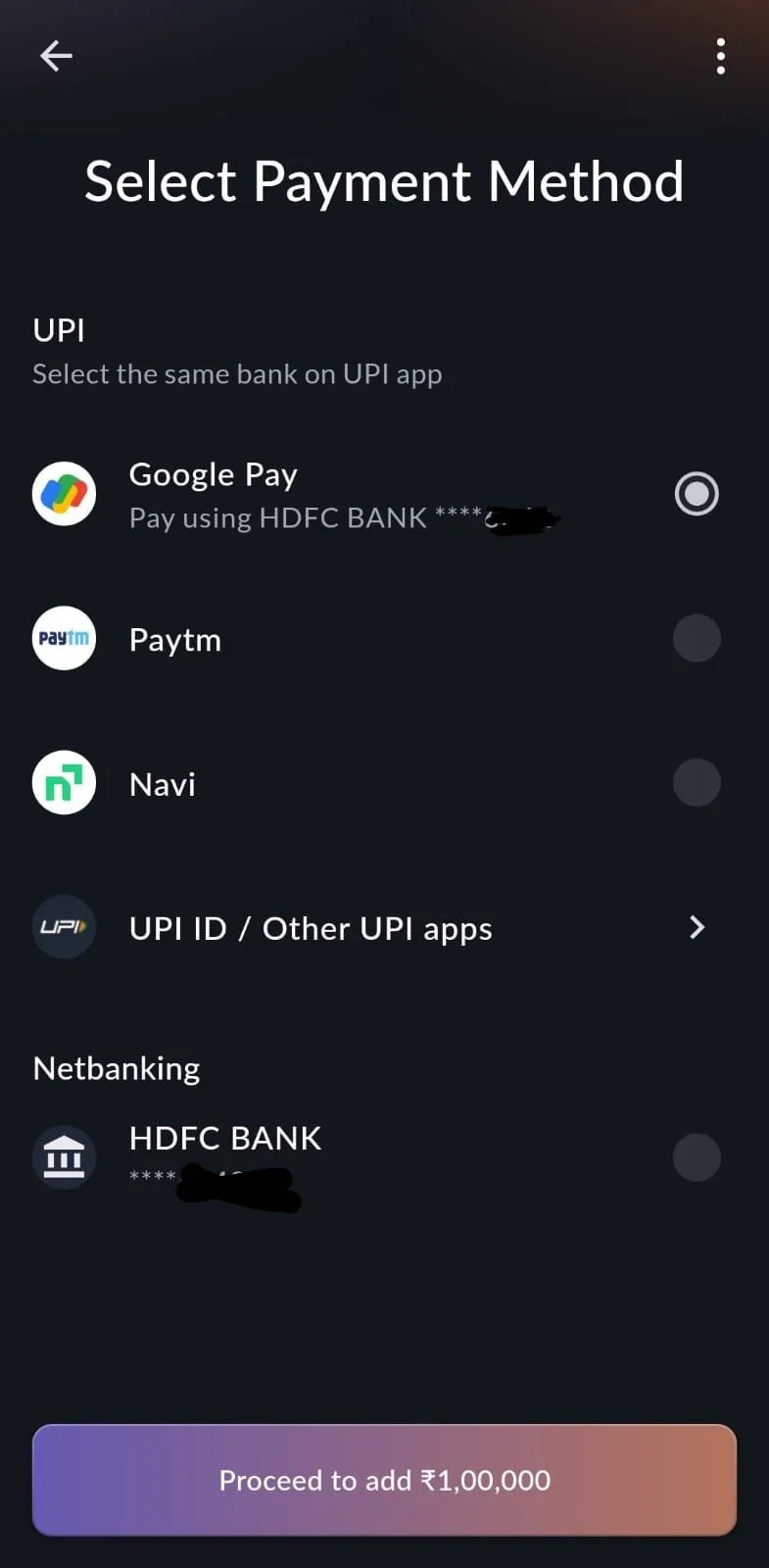
- CNetbanking
Your bank; selected instead if you paid this way last time.
- DProceed
Adds the amount you entered, ₹1,00,000 here.
3How it helps
- Fewer taps when it counts. Topping up for margin mid-session takes one press after the amount.
- The same bank each time. The screen asks you to pay from the same bank on your UPI app; remembering your choice keeps it that way.
Under UPI the screen says to select the same bank on your UPI app. Check the bank in your UPI app before you approve the payment.
- Shown on SAHI's own phone screen; we did not add money for this page.
Questions
What is the difference between the trigger and the price?
The trigger is the price that sets the exit off. The price is how the exit order goes in after that: at Market, to fill at whatever is available, or at a Limit, to fill only at your price or better.
Which should I use for a stop loss?
Market if you must be out whatever happens; it fills even when the price gaps past your trigger. Limit if you will not accept a worse price, knowing it may not fill in a gap.
Does it work for stocks and futures too?
Yes. SAHI's release says Market and Limit SL/TP work in every segment: stocks, futures and options.
Can I undo my chart colours?
Yes. In chart Settings, Customize, press Reset to default.
Set your next exit on SAHIOpen the order window, turn on Stop Loss and choose Market or Limit.
Open SAHI