


SAHI's release showed these on the app. Chart colours are below on SAHI web, light and dark, with SAHI's own two example palettes. The internet check is an app feature; we did not find it on SAHI web. We changed no setting for these pictures.
Chart colours, on every chart type
1Where it is
WhereSAHI webChartSettings (gear)Chart type / Customize
On any chart, press the gear at the right end of the chart toolbar. Chart type picks the style; Customize sets the colours. On the app: chart Settings, then Colours.
- AChart type
The first tab of chart Settings.
- BLine, Step Line, Area
Price as a line or a filled area.
- ECustomize
Where the colours are set.
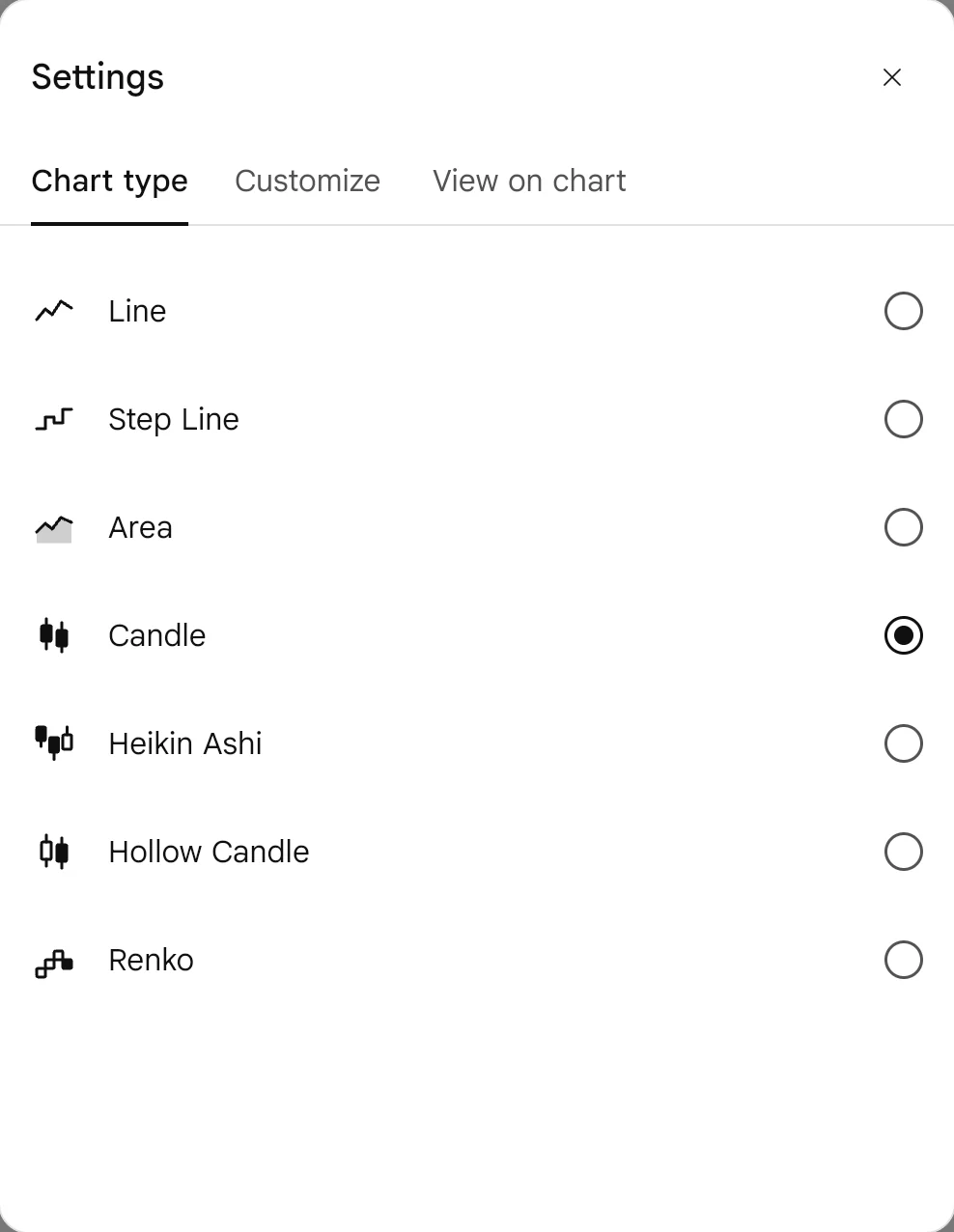
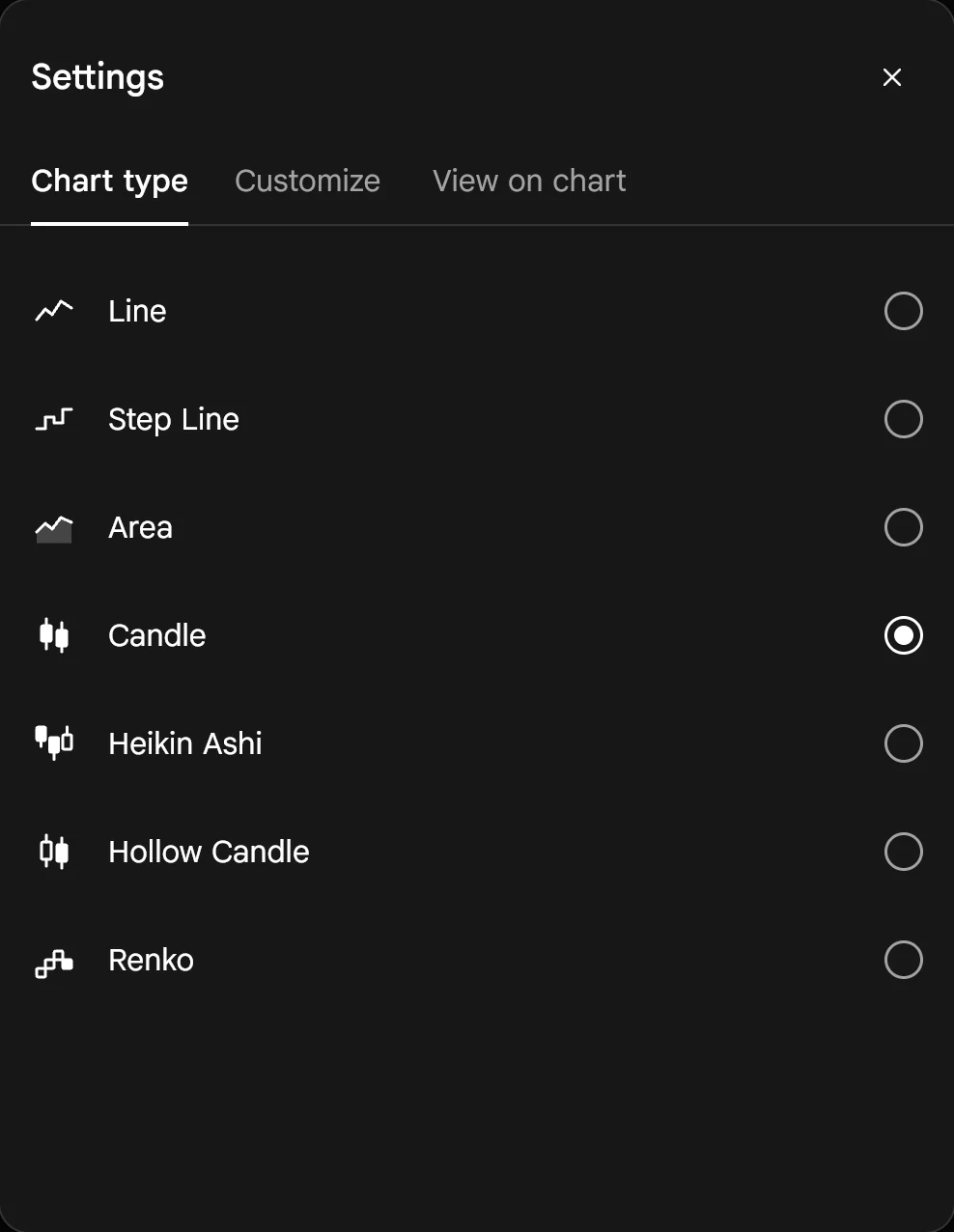
- CCandle
Selected here.
- DHeikin Ashi, Hollow Candle
Smoothed candles, and candles hollow on up moves.
Change your colours4 steps
- Press the gear on any chart and open Customize.
- Press a colour box: a candle body or wick, or a canvas part such as grid lines.
- Pick a colour and its opacity, then press Save.
- Use Reset to default to go back to SAHI's colours.
2What it is
You can set the candle body and wick colours for rising and falling candles, and the canvas parts: grid lines, crosshair and session breaks, the lines that mark where each trading day starts. SAHI's release says this works on candlestick, Heikin Ashi, hollow candle, line and area charts, and that your choice applies to all charts.
- ACandle colours
Body and wick, for positive (rising) and negative (falling) candles.
- BSession break
The line where each day starts.
- EReset to default
Undoes every colour at once.
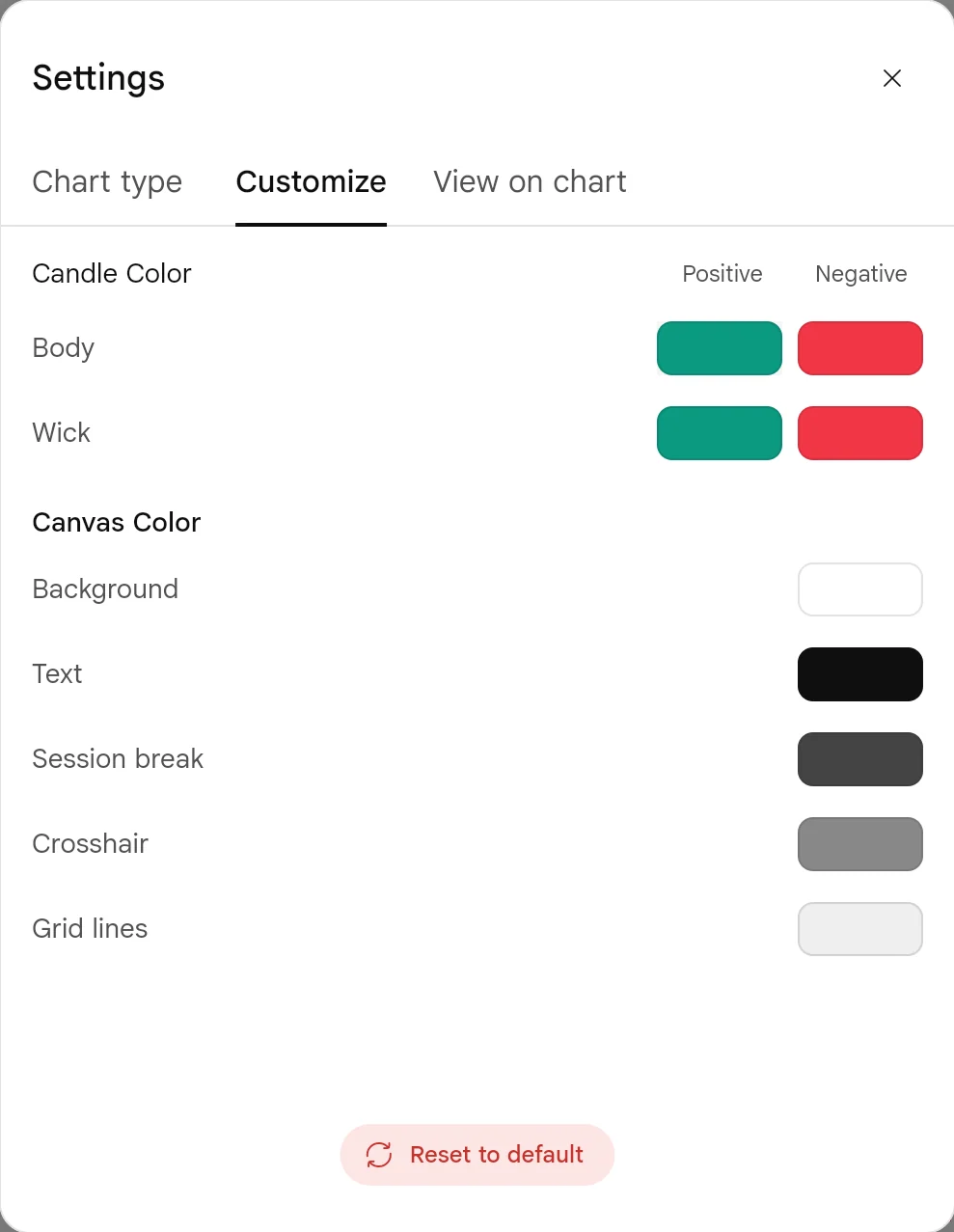
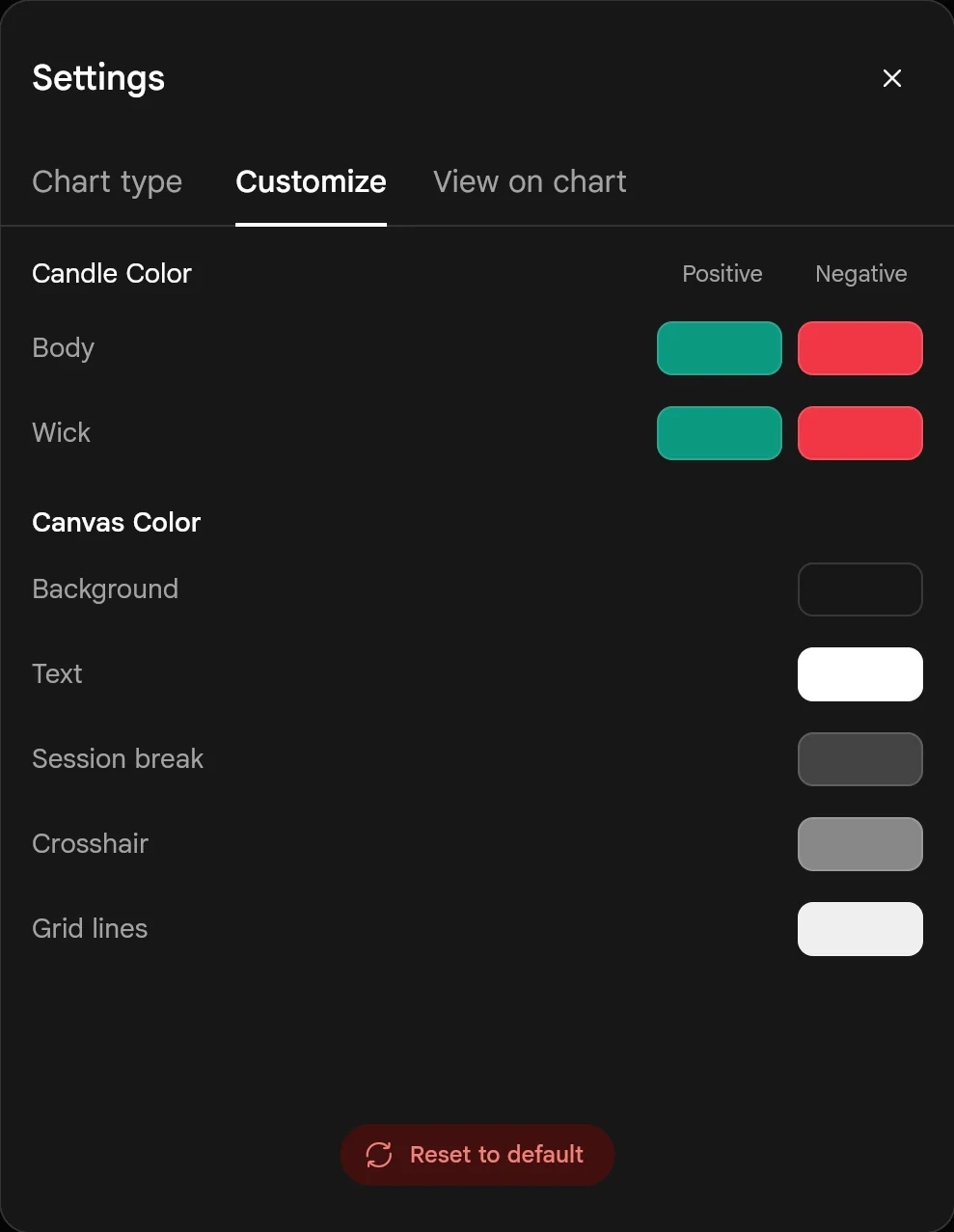
- CCrosshair
The lines that follow your pointer.
- DGrid lines
The background grid.
3How it helps
- Less strain on long sessions. Softer colours for hours at the screen, sharper ones when you need contrast.
- Spot the move faster. Candle colours you read without thinking make patterns easier to see.
- Quieter charts. Fainter grid lines and session breaks leave the candles in front.
SAHI's two example looks
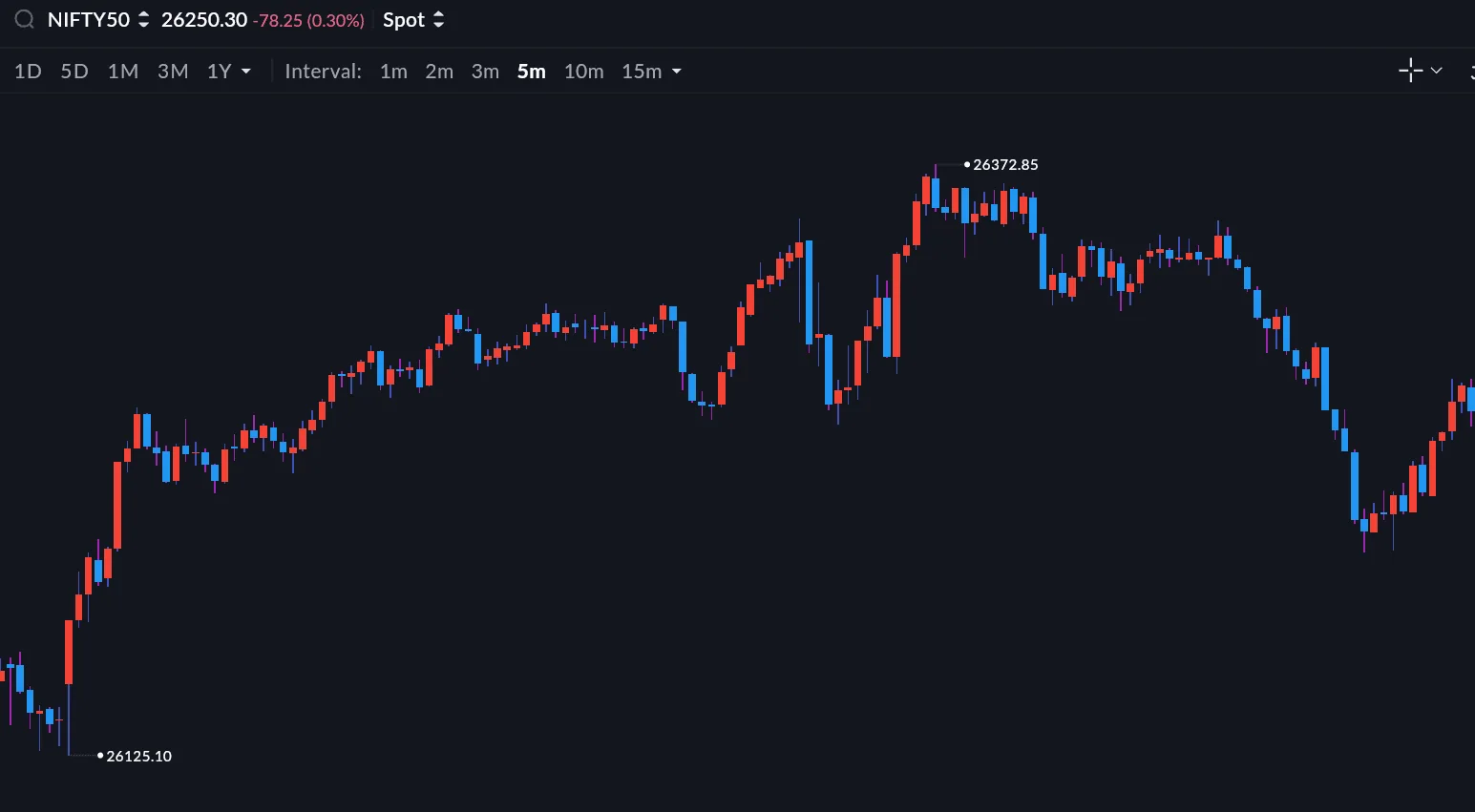
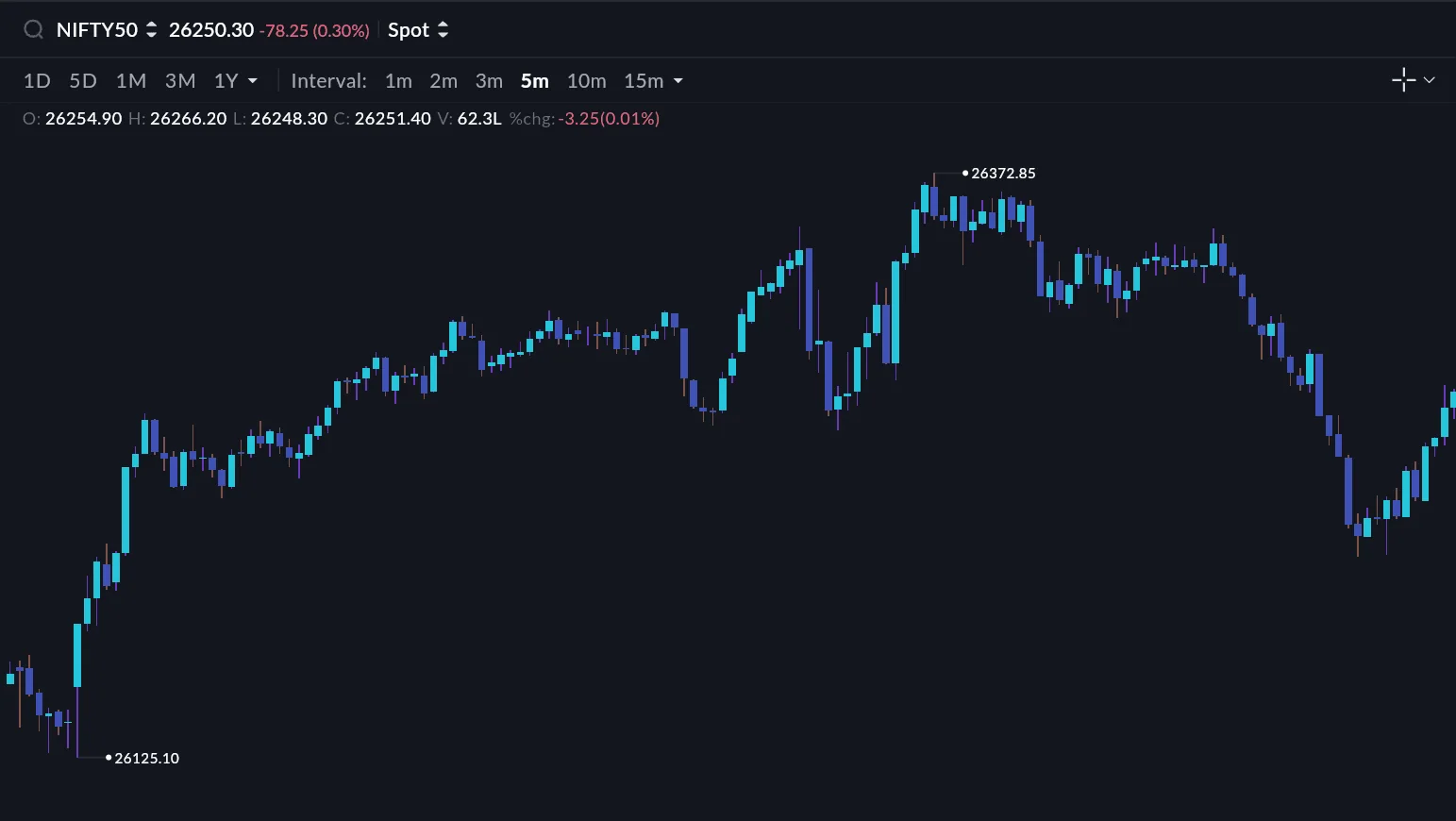
If you change the rising and falling candle colours, keep them clearly different from each other and from the background.
- We did not change any colour for these pictures; the Customize screens are from the 22 Jan update.
A real-time internet check
1Where it is
WhereSAHI appProfileSettingsInternet Speed Check
SAHI's release says the app watches your connection all the time and warns you when it becomes unstable. To test it yourself, open Profile, then Settings, then Internet Speed Check.
2What it is
The app checks your internet in the background and shows an alert when the connection becomes unstable, so you know when candles may be arriving late or an exit may be slow. You can also run a speed check whenever you like.
3How it helps
- Know before it costs you. A warning that your connection is weak tells you to be careful before you place or exit a trade.
- Rule out the obvious. If a chart looks frozen, a quick speed check tells you whether the problem is your network.
If the app warns you mid-trade, check your position on another connection, or keep a stop loss in place so the exit does not depend on your network.
- This is an app feature. We found no internet check in SAHI web's profile menu, and SAHI's release has no picture of it, so none is shown here.
Questions
Which chart types do the colours apply to?
SAHI's release lists candlestick, Heikin Ashi, hollow candle, line and area charts.
Can I undo my colour changes?
Yes. In chart Settings, Customize, press Reset to default.
Where is the internet check?
On the SAHI app: Profile, Settings, Internet Speed Check. The app also warns you on its own when your connection becomes unstable.
Make your charts yoursOpen chart Settings, Customize, and set the colours you trade with.
Open SAHI